
Welcome to your new account. This guide will walk you through your first login, how to secure your account, and how to navigate the main dashboard.
1. Accessing Your Portal
To begin, navigate to the login URL provided in your welcome email using your web browser.
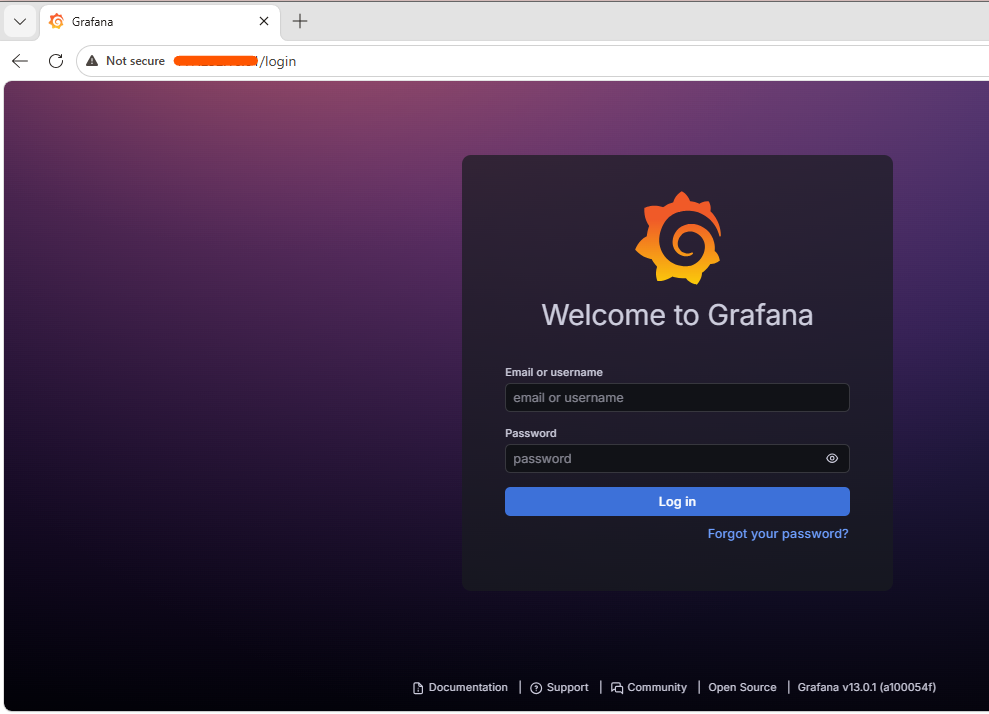
Portal URL: http://[YOUR_SERVER_IP]
-
Username:
admin -
Password:
admin
⚠️ Security Notice: The credentials provided above are temporary. For your protection, you are required to change your password immediately upon your first login.
2. Changing Your Password
After your initial login, you will be redirected to the Update Password screen.
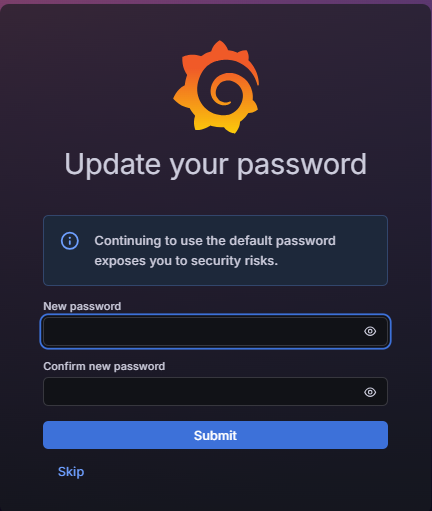
Steps to secure your account:
-
New Password: Create a strong, unique password. (We recommend at least 12 characters, including numbers and special symbols).
-
Confirm Password: Re-enter your new password to verify.
-
Save: Click the Save or Update button to apply the changes.
If you are not automatically redirected, please navigate to your Account Settings or Profile tab to find the password change option.
3. Navigating the Dashboard
Once you have secured your account, you will arrive at the main Dashboard. This is your central hub for managing your services.
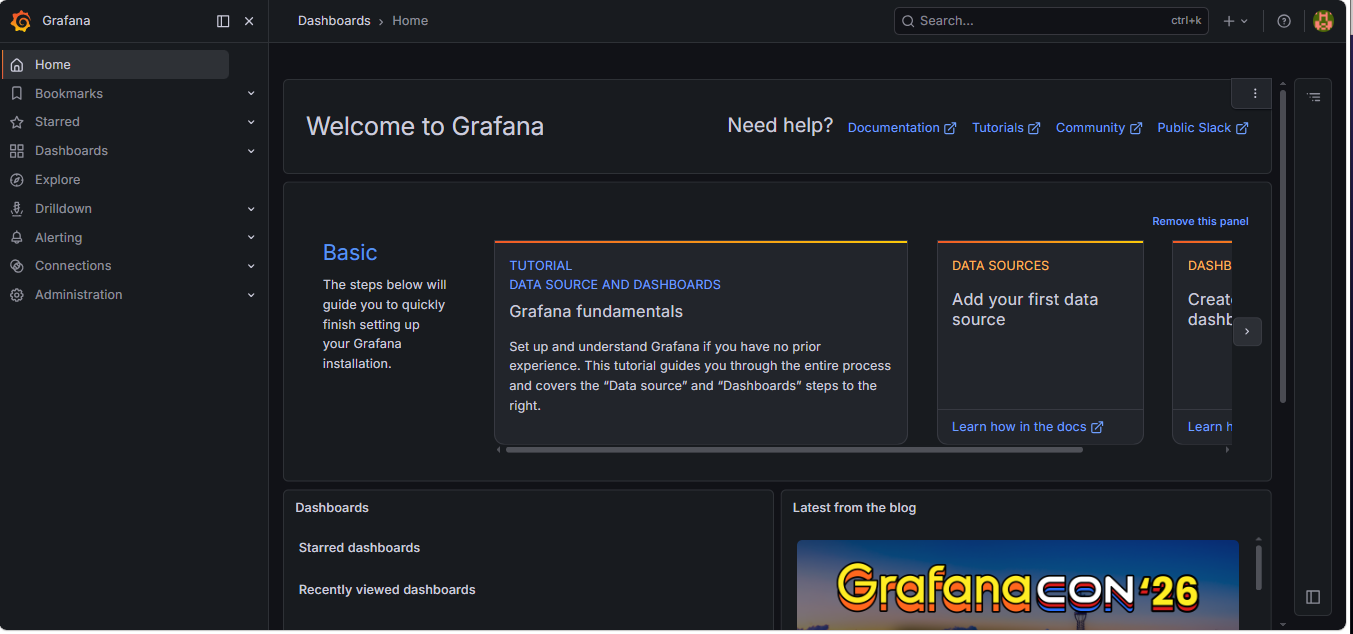
Key areas to explore:
-
Overview: A snapshot of your account status, system health, and recent activity.
-
Settings: Where you can configure your preferences, notification settings, and security options.
-
Support: Access help articles or submit a ticket if you encounter any issues while managing your services.
4. Troubleshooting Login Issues
If you are unable to log in, please try the following steps:
-
Clear Browser Cache: Sometimes your browser saves old information. Try clearing your cache or opening the page in an "Incognito" or "Private" window.
-
Check Caps Lock: Ensure your Caps Lock key is not accidentally turned on, as passwords are case-sensitive.
-
Password Reset: If you have forgotten your new password, click the "Forgot Password?" link on the login page to receive a reset link via email.