
Easypanel is a modern, Docker-based control panel designed to make hosting and managing your applications simple, fast, and scalable. This guide will help you log in, secure your account, and launch your first project.
1. Accessing Your Portal
To begin managing your server, navigate to the portal URL provided in your welcome email using your browser:
Portal URL:
http://[YOUR_SERVER_IP]
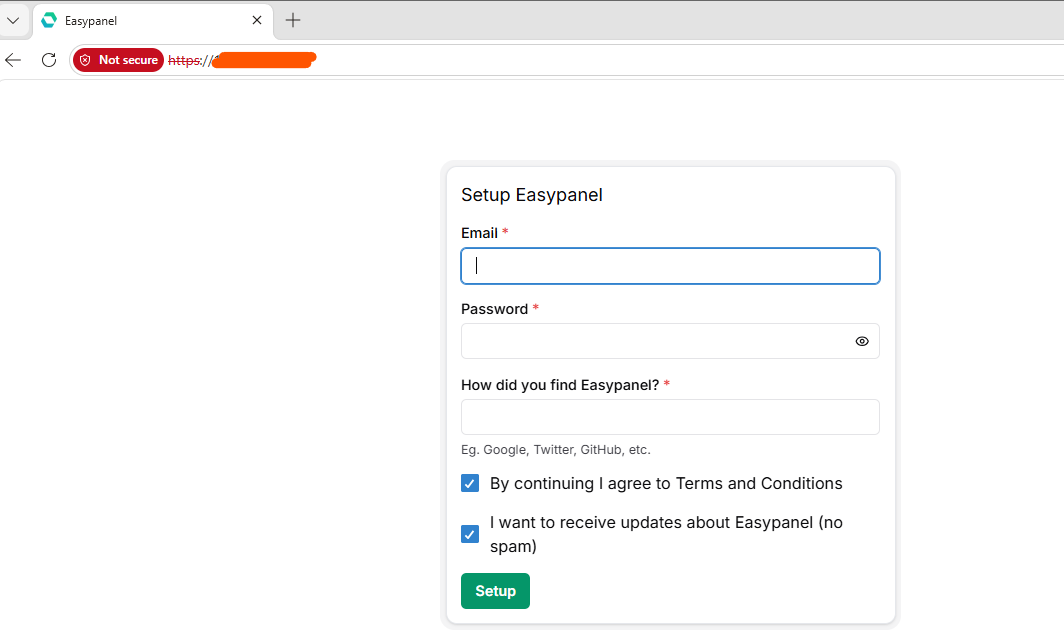
Initial Setup
If this is your first time accessing the server:
-
You will be prompted to create your Administrative Account (Email and Password).
-
Choose a strong, complex password.
-
Once created, log in using those credentials.
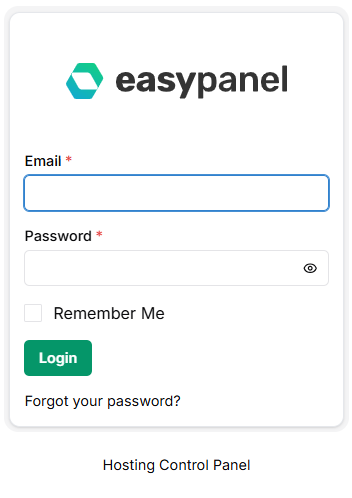
2. Navigating the Dashboard
After logging in, you will be directed to your central dashboard. This interface is the "command center" for all your hosted services.
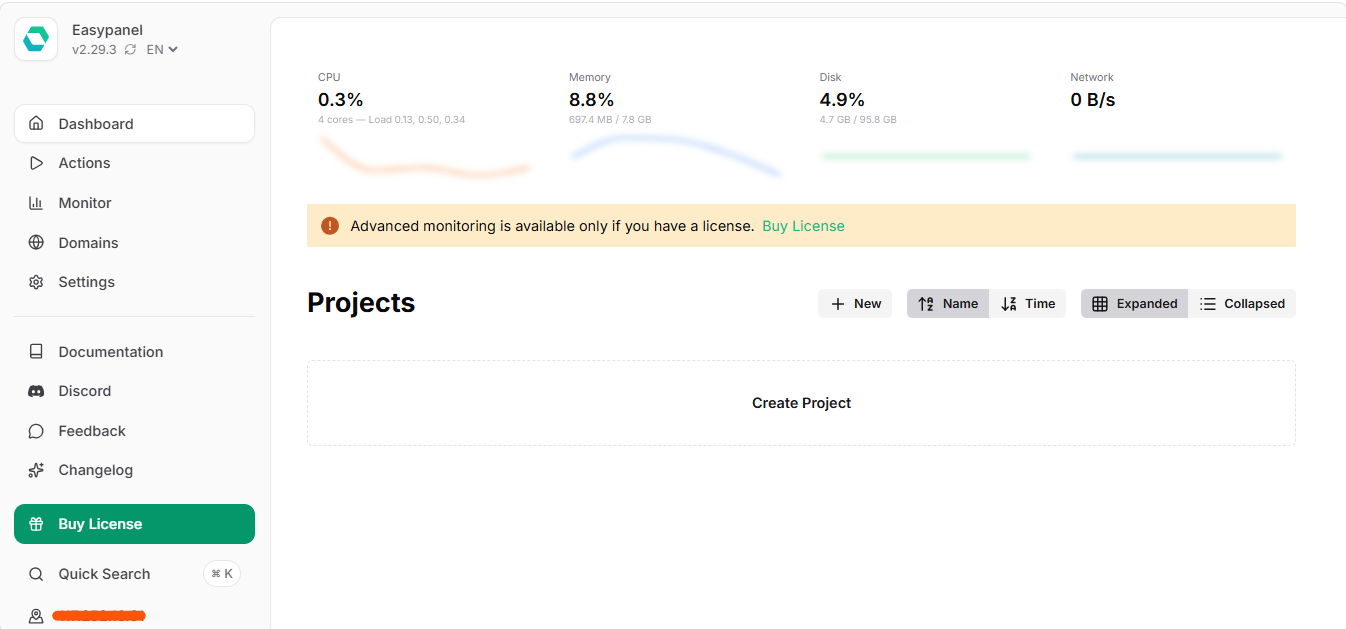
Core areas to explore:
-
Projects: This is where you organize your work. You can create different projects for different websites, staging environments, or apps to keep your server clean and organized.
-
Templates: This is the heart of Easypanel. Browse the library to deploy popular applications (like WordPress, Ghost, MySQL, or Nginx) with just a few clicks.
-
Resources: Monitor your CPU, RAM, and Disk Usage in real-time. If your applications are running slow, check here to see if you are hitting your server's limits.
-
Settings: Manage your global settings, including SSH keys, domain configuration, and admin security settings.
3. Deploying Your First App
One of the main benefits of Easypanel is its powerful template system. To launch an app:
-
Click on a Project (or create a new one).
-
Click the "Deploy" or "Add Service" button.
-
Select an app from the Templates library.
-
Configure the required fields (like Domain name or Database credentials).
-
Click Deploy.
Easypanel will automatically pull the necessary Docker images and configure the networking for you.
4. Security Best Practices
Since Easypanel manages your server via Docker, keeping your admin account secure is critical:
-
SSH Keys: Always add your SSH public key in the Settings menu. This allows you to manage the server securely without relying solely on passwords.
-
Keep Updated: Regularly check the "Software Updates" section within the dashboard to ensure your panel and Docker images are running the latest, most secure versions.
-
Restrict Access: If you are not using the panel, ensure your firewall settings only allow your specific IP address to access the panel ports.
5. Troubleshooting Common Issues
If you cannot access your portal or an app fails to deploy:
-
Container Status: If an app is failing to start, go to the app's settings within your project and check the "Logs" tab. This will show you exactly why the container is crashing.
-
Service Availability: If the entire page is unreachable, log in to your server via SSH and ensure the Easypanel container is active by running:
docker ps.