
Odoo is a powerful, all-in-one ERP suite. Unlike standard control panels, Odoo requires a one-time database initialization before you can begin using your applications. Follow this guide to set up your environment correctly.
1. Accessing Your Portal
To begin, open your web browser and navigate to your server's IP address. Note that Odoo typically runs on port 8069.
Portal URL:
http://[YOUR_SERVER_IP]
2. Setting Up Your Database (First-Time Initialization)
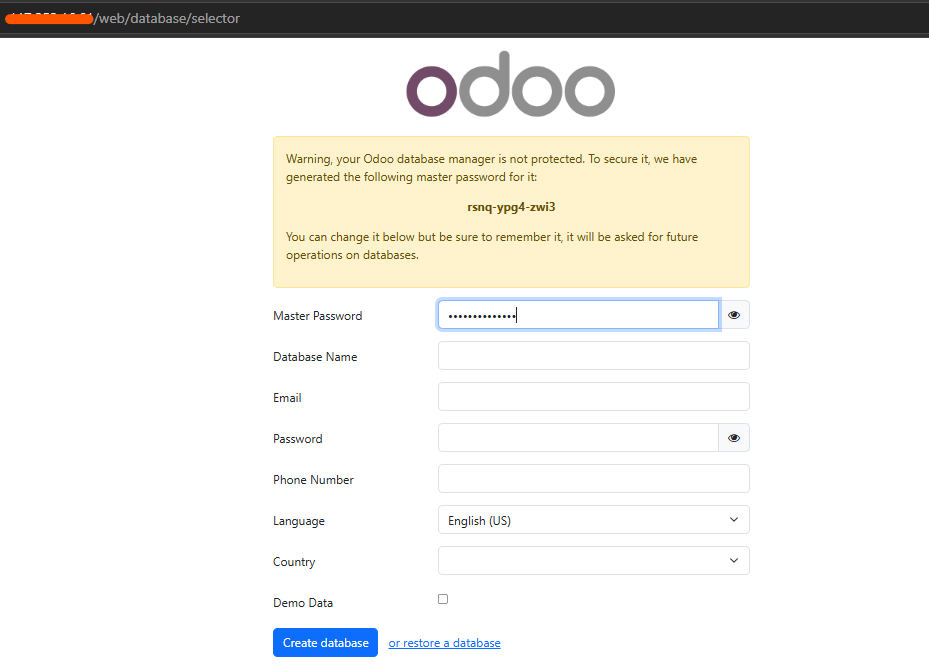
When you access your Odoo instance for the first time, you will be greeted by the Database Management page. This step is mandatory to initialize your ERP system.
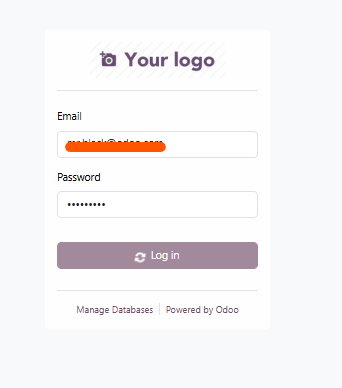
Steps to initialize your Odoo instance:
-
Master Password: Enter the default master password provided in your welcome email or server file.
-
Database Name: Choose a name for your database (e.g.,
odoo_prod). -
Email & Password: Set the credentials you will use to log in as the System Administrator.
-
Language & Country: Select your preferences.
-
Demo Data: Check "Load demonstration data" only if you are testing; leave it unchecked for production use.
-
Continue: Click the Continue button to create your database.
⚠️ Security Alert: Please save your Master Password in a secure location (e.g., a password manager). If you lose this password, you will not be able to manage your databases.
3. Navigating the Dashboard
Once your database is created and you have logged in, you will arrive at the Apps Dashboard. This is your central hub for managing your business workflows.
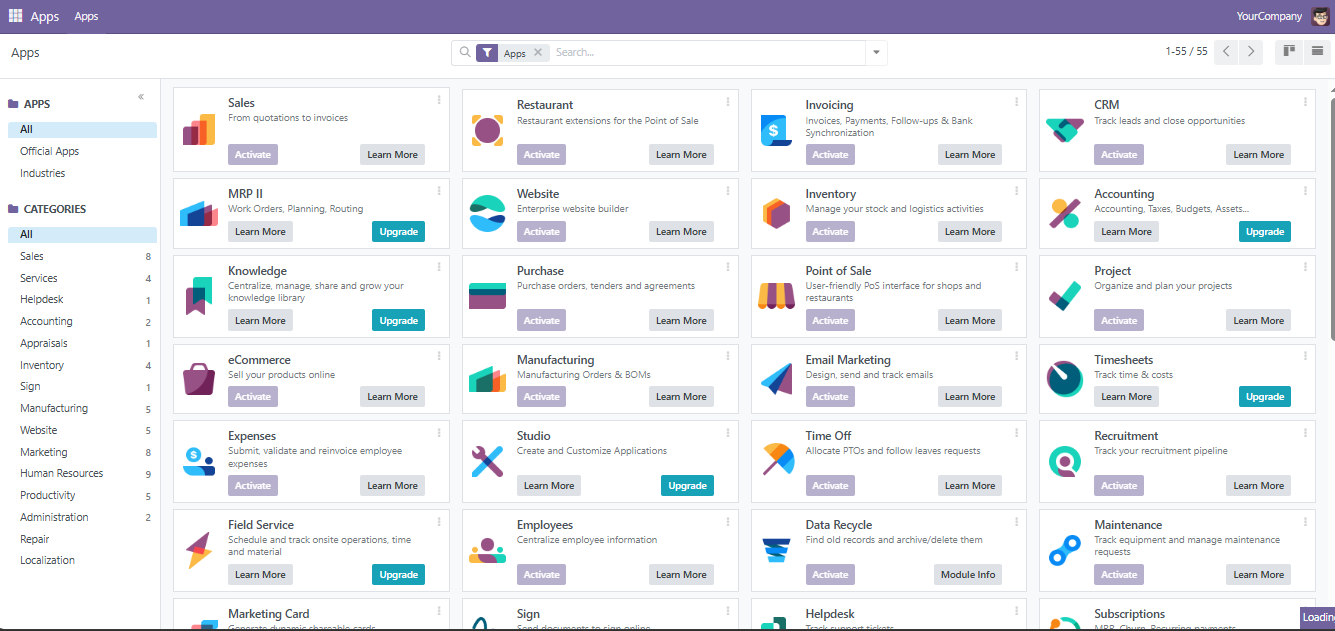
Key areas to explore:
-
Apps: Browse and install the specific modules you need (e.g., CRM, Invoicing, Inventory, Website).
-
Settings: Configure your company details, user permissions, and general system settings.
-
Activate Modules: Once you install an app, it will appear in the main navigation menu at the top of the screen.
4. Troubleshooting Common Issues
If you encounter issues during setup or usage:
-
Page Unreachable: If it still doesn't load, log in via SSH and check if the Odoo service is running by typing:
systemctl status odoo. -
Database Already Exists: If you try to create a database and see an error, it may have already been initialized. Try logging in with the credentials provided in your HostGraber welcome email.
-
Slow Performance: Odoo is resource-heavy. If the interface feels sluggish, check your Dashboard or use the
htopcommand in your terminal to ensure you aren't exceeding your server's RAM limits.
Need Further Assistance?
If you are having trouble with the database initialization or need help installing specific Odoo modules, our support team is here to help.
[Open a Support Ticket at HostGraber] | [Browse Official Odoo Documentation]
Pro-Tip: As you grow, you can add more modules to Odoo at any time. We recommend starting with only the modules you need immediately to keep your system clean and fast!