
Step 1: Retrieve Your Server Credentials
Before opening the web interface, you need to retrieve the system-generated keys from your server. These were created during the automated installation.
-
Connect to your VPS via SSH (using Terminal or PuTTY).
-
Run the following command to see your database and app secrets:
cat /root/credential.txtNote: Keep these keys safe. While they aren't your login password, they are vital for the application’s background security and database encryption.
Step 2: The Initial Setup Wizard
Once your server is ready, open your web browser and navigate to your server's IP address (e.g., http://your_server_ip). You will be greeted by the Dradis setup wizard.
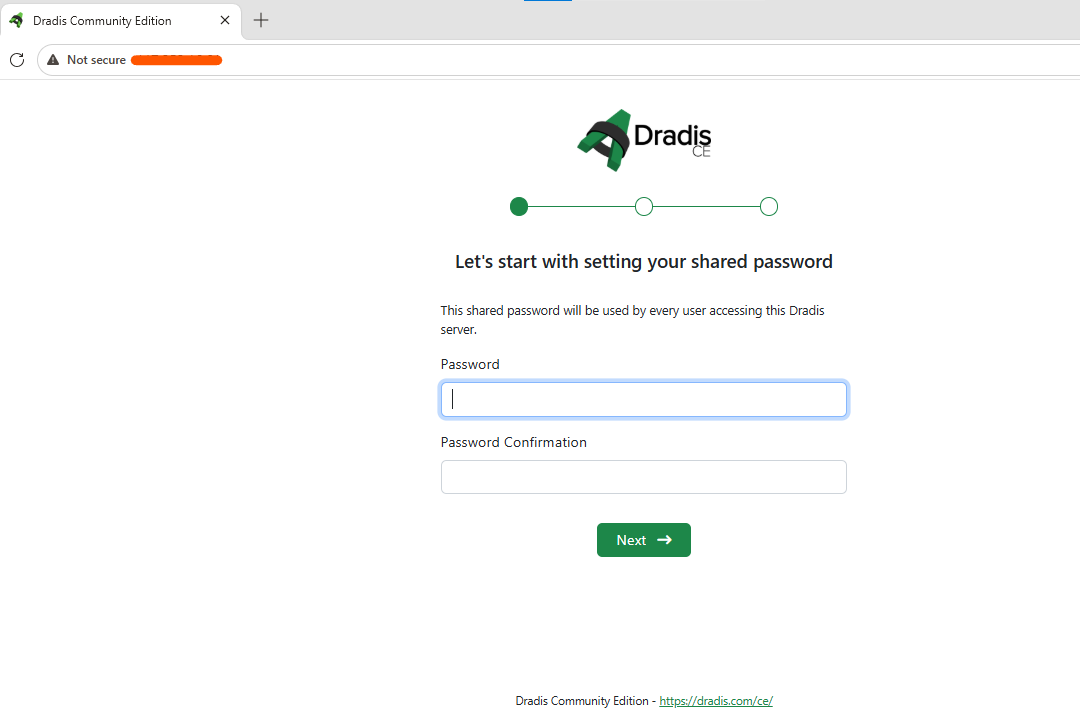
1. Set Your Shared Password
The first screen will ask you to set a Shared Password. This password is used to protect the setup of the server itself.
-
Enter a strong password.
-
Confirm the password.
-
Click Next.
2. Privacy & Telemetry
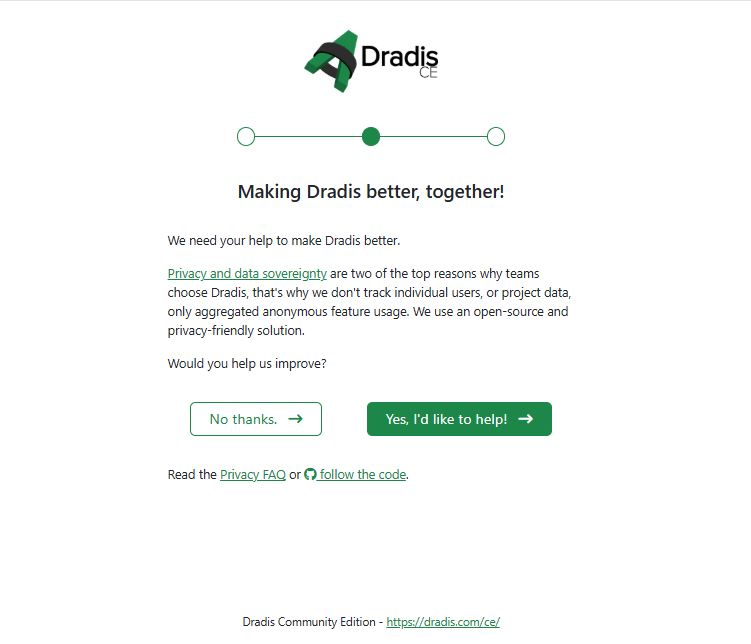
Dradis will ask if you would like to share anonymous usage data to help improve the software.
-
Choose "Yes, I'd like to help!" or "No thanks." based on your preference.
-
This does not affect your product features.
3. Choose a Starter Kit
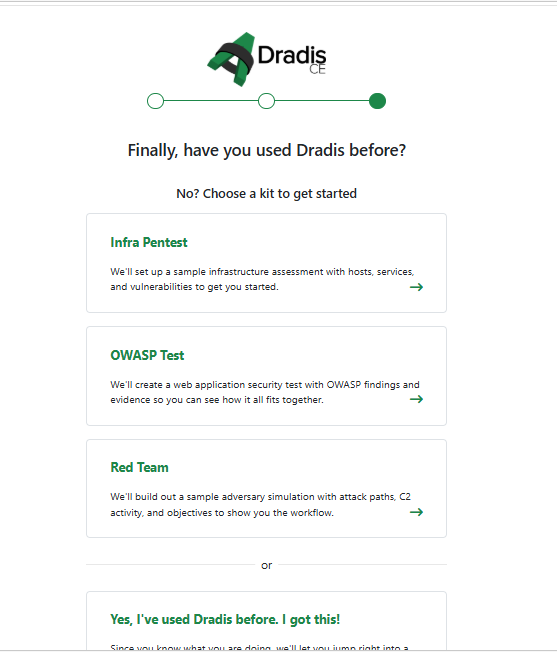
To help you get started, Dradis offers "Kits" that pre-load the environment with specific templates (e.g., OWASP for web testing or Infra for network testing).
-
Select the kit that matches your project type, or select "I've used Dradis before" to start with a blank slate.
Step 3: Logging In
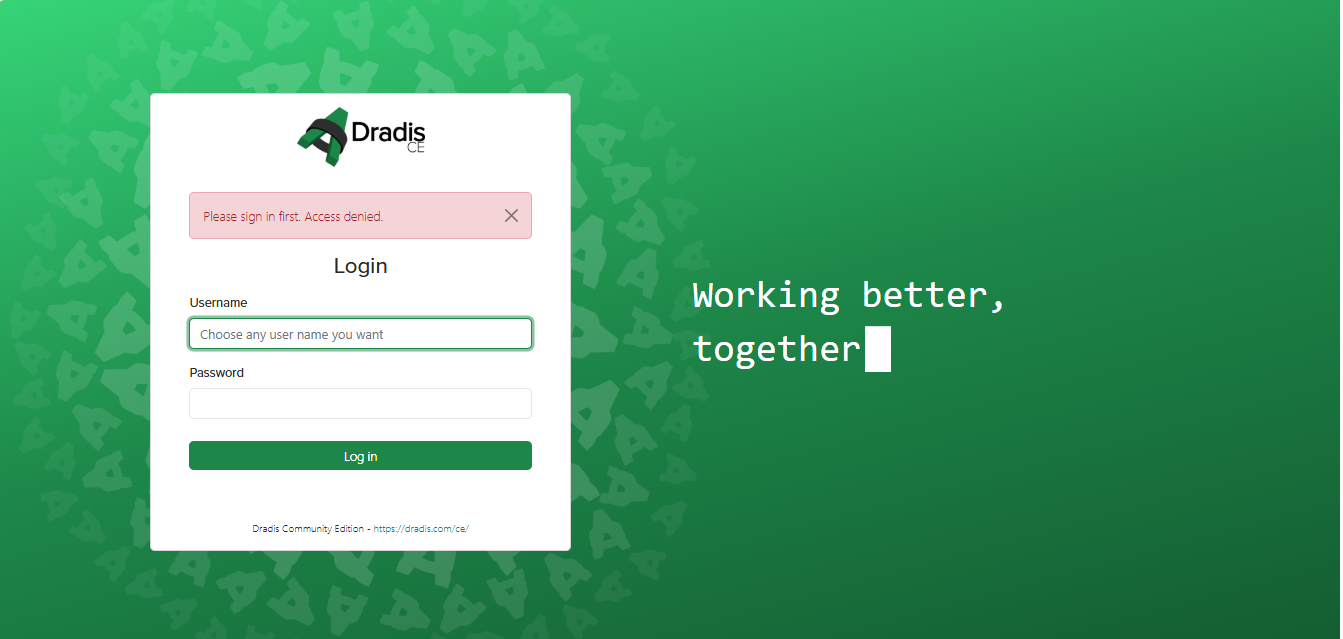
After the wizard is complete, you will be redirected to the main login screen.
Username: You can choose any username you want for your first login ( like admin ).
Password: Use the Shared Password you created in Step 2.
Step 4: Your Dashboard
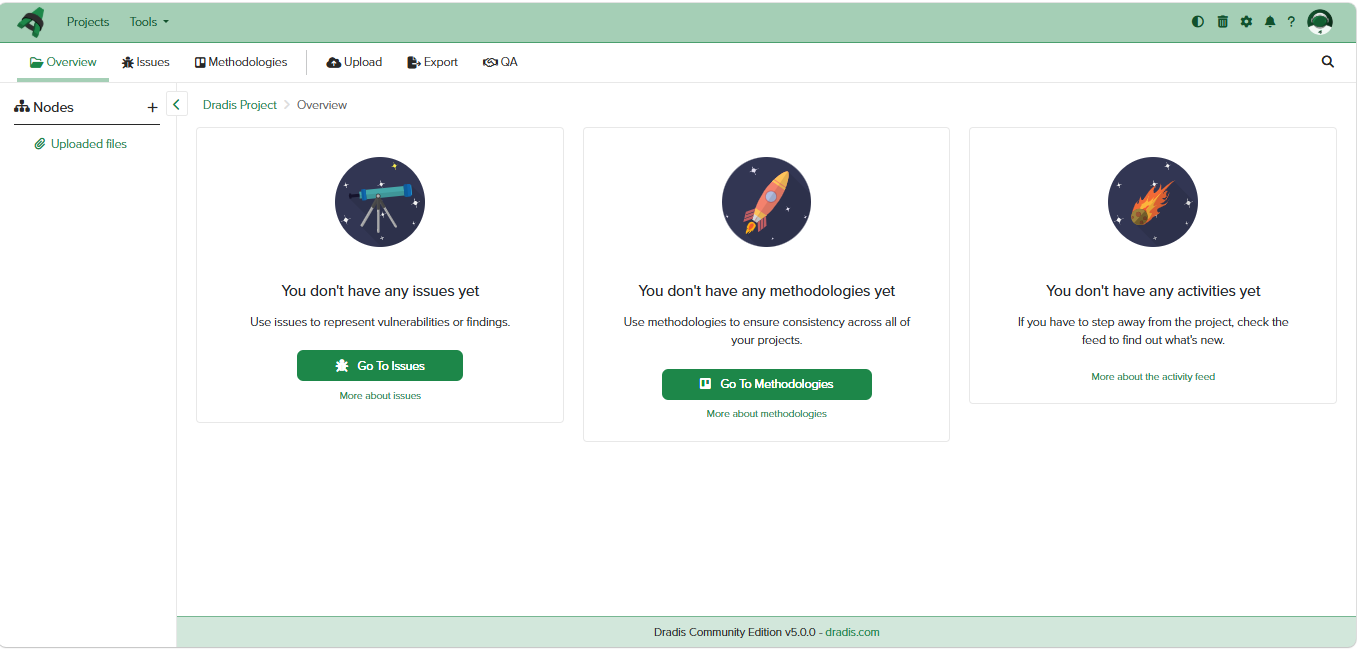
Congratulations! You are now in the Dradis Framework dashboard. From here, you can start managing your security assessments.
-
Nodes: Use the left sidebar to add IP addresses or hostnames.
-
Issues: Use the "Go To Issues" button to start documenting your findings and vulnerabilities.
-
Methodologies: Use the center tab to follow standardized testing procedures like OWASP.
Need Help?
If you encounter a 502 Bad Gateway error when first visiting your site, please wait 1–2 minutes for the background services to finish their initial boot-up. If the issue persists, contact our support team at HostGraber.com.
Happy Pentesting!