
Congratulations on your new Nextcloud VPS! We have pre-configured your server to be ready for immediate use. This guide will walk you through retrieving your unique login credentials and accessing your private cloud for the first time.
Prerequisites
-
Your VPS Server IP address (provided in your purchase confirmation email).
-
An SSH client (e.g., Terminal on Mac/Linux, PuTTY or PowerShell on Windows).
Step 1: Connect to your Server via SSH
To retrieve your unique login credentials, you must first connect to your server securely.
-
Open your SSH client.
-
Run the following command (replace
YOUR_SERVER_IPwith the IP address provided to you):ssh root@YOUR_SERVER_IP -
If this is your first time connecting, type
yesto accept the server fingerprint. -
Enter the root password provided in your welcome email when prompted.
Step 2: Retrieve your Login Credentials
Once you are logged into your server, you will see the command prompt. Your credentials are automatically generated and saved in a secure file on the server.
-
Run the following command to display your login details:
cat /root/credential.txt -
You will see an output on your screen. It should look like this:
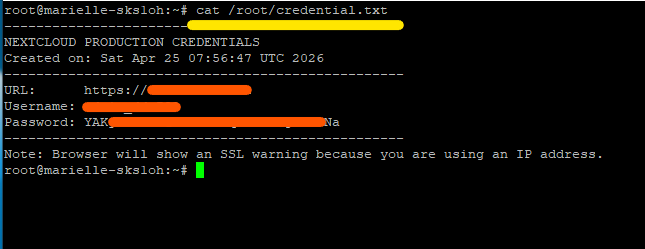
(Caption: Example of the credential display in your terminal)
Note: Please copy or save these credentials in a secure place (like a password manager), as you will need them to log in to the web interface.
Step 3: Access your Nextcloud Dashboard
-
Open your web browser (Chrome, Firefox, Edge, etc.).
-
In the address bar, type the URL provided in the credential file (e.g.,
https://xx.xx.XX.XX). -
The Login Page: You will be greeted by the Nextcloud login screen.
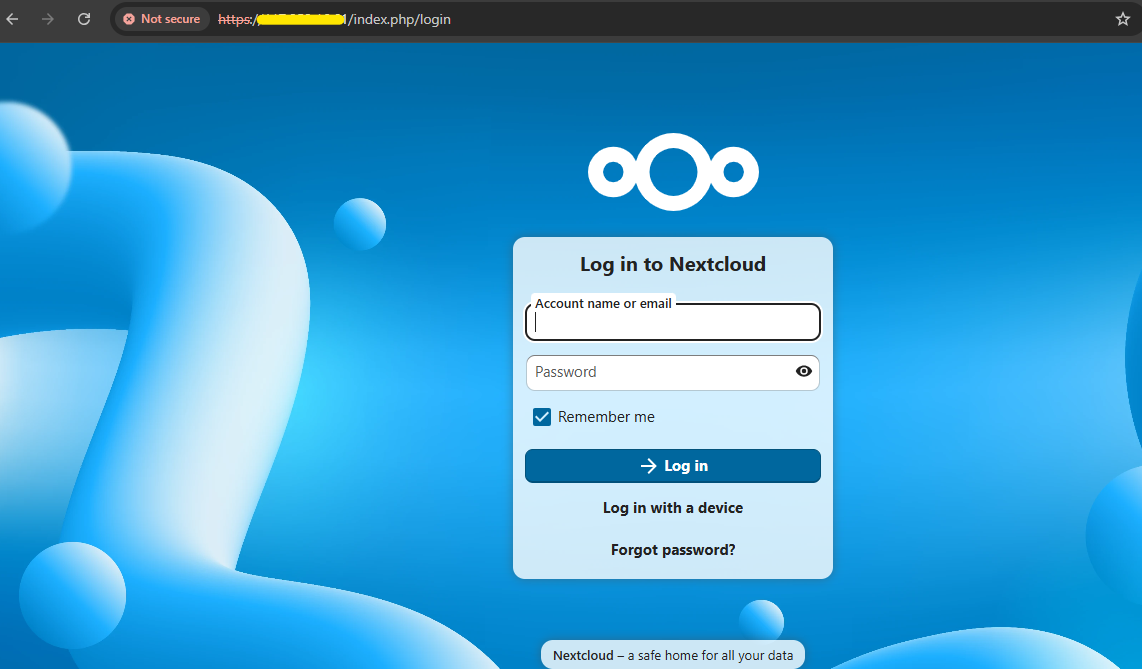
(Caption: Enter the Username and Password you found in Step 2)
-
Important Security Note: You may see a screen that says "Your connection is not private" or "Potential Security Risk Ahead." This is because the server uses a self-signed security certificate by default. Simply click Advanced -> Proceed to [IP Address] (unsafe) to continue.
Step 4: Welcome to Your Dashboard
Once logged in, you will see the Nextcloud "Collaboration Platform" welcome screen.
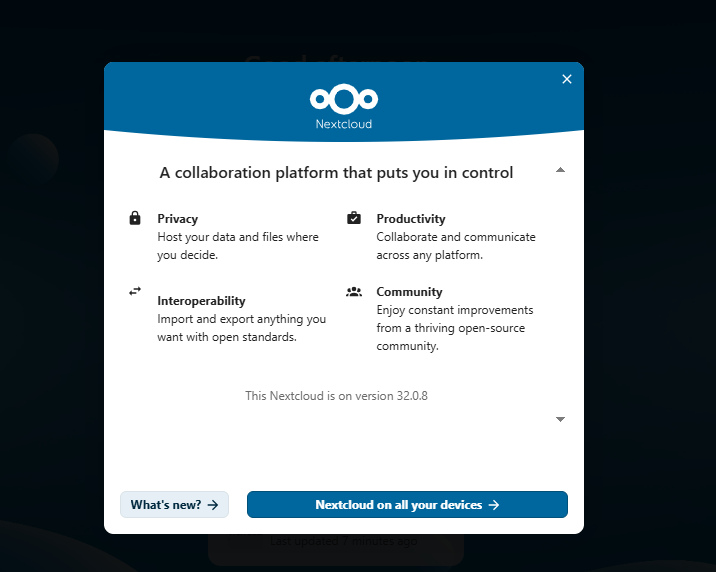
(Caption: The welcome modal confirming your version and features)
Click through this, and you will land on your main File Dashboard:
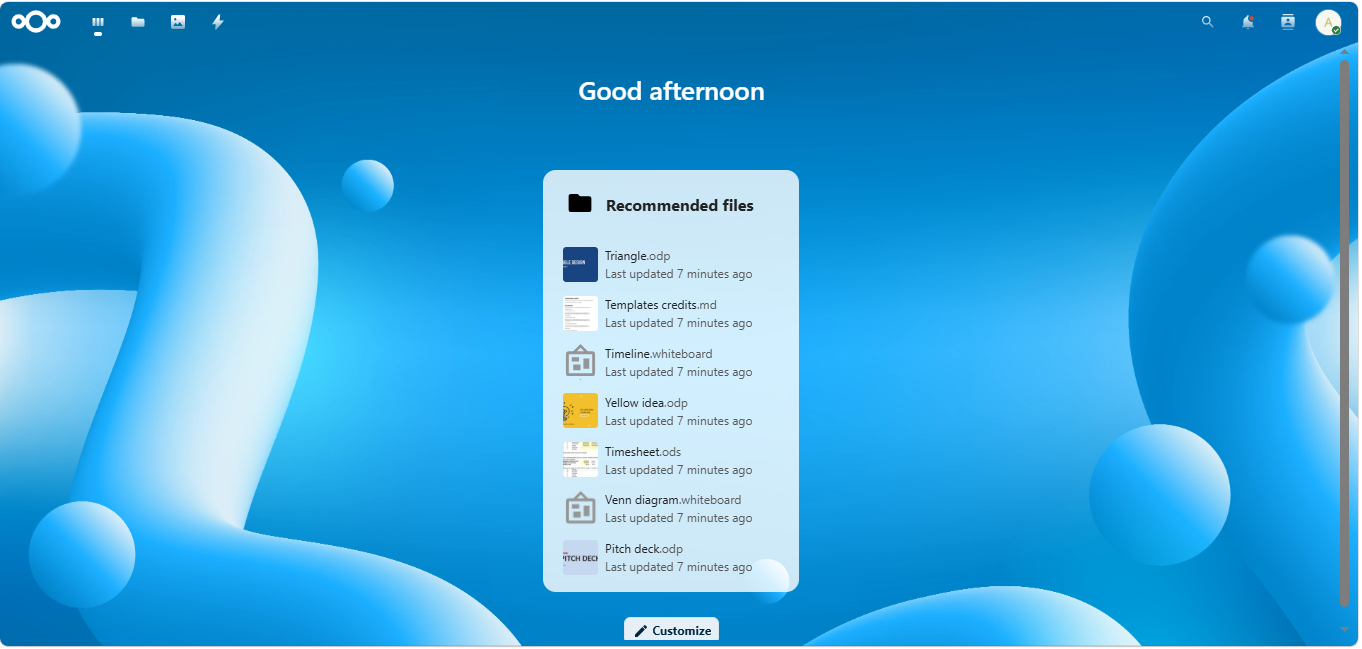
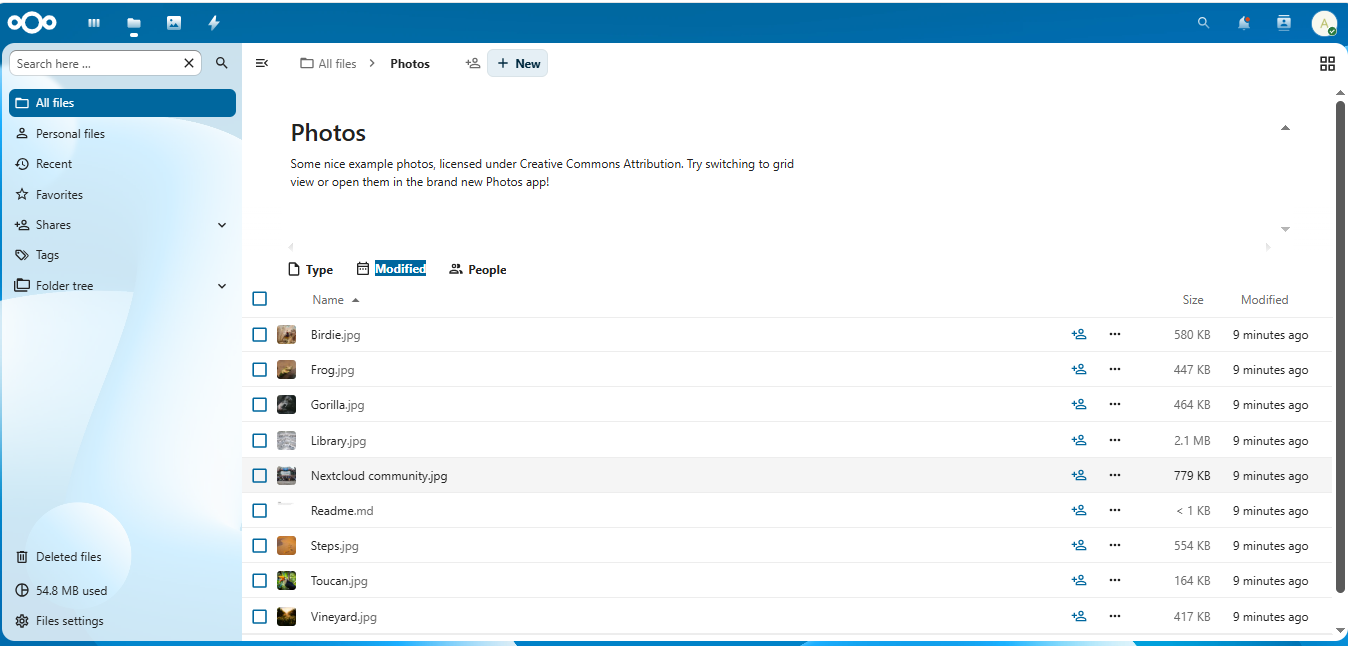
(Caption: Your empty, ready-to-use cloud dashboard)
Pro-Tips & Next Steps
-
Change your password: Once you log in, we recommend clicking on your profile icon (top right), going to Settings, and updating your password to something secure.
-
Map your Domain: If you have a domain name, you don't need to use your IP address. Log in to your domain registrar’s dashboard (e.g., GoDaddy, Namecheap) and create an "A Record" for your domain (e.g.,
cloud.yourdomain.com) that points directly to your VPS IP address. -
Support: If you have trouble connecting or the command
cat /root/credential.txtdoes not display your credentials, please open a ticket with our support team, and we will be happy to assist you.