
Step 1: Login to cPanel
Log in to your cPanel account using your hosting credentials.
Once logged in, locate and open the Domains section.
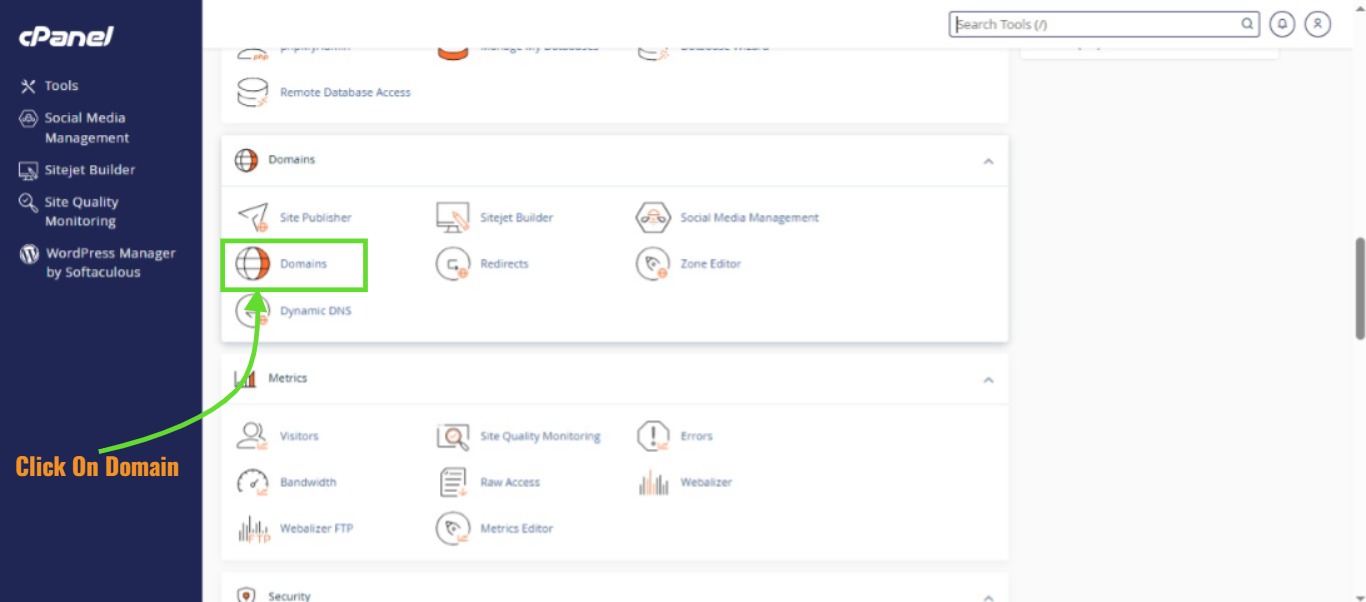
Step 2: Click “Create A New Domain”
Inside the Domains page, click on Create A New Domain.
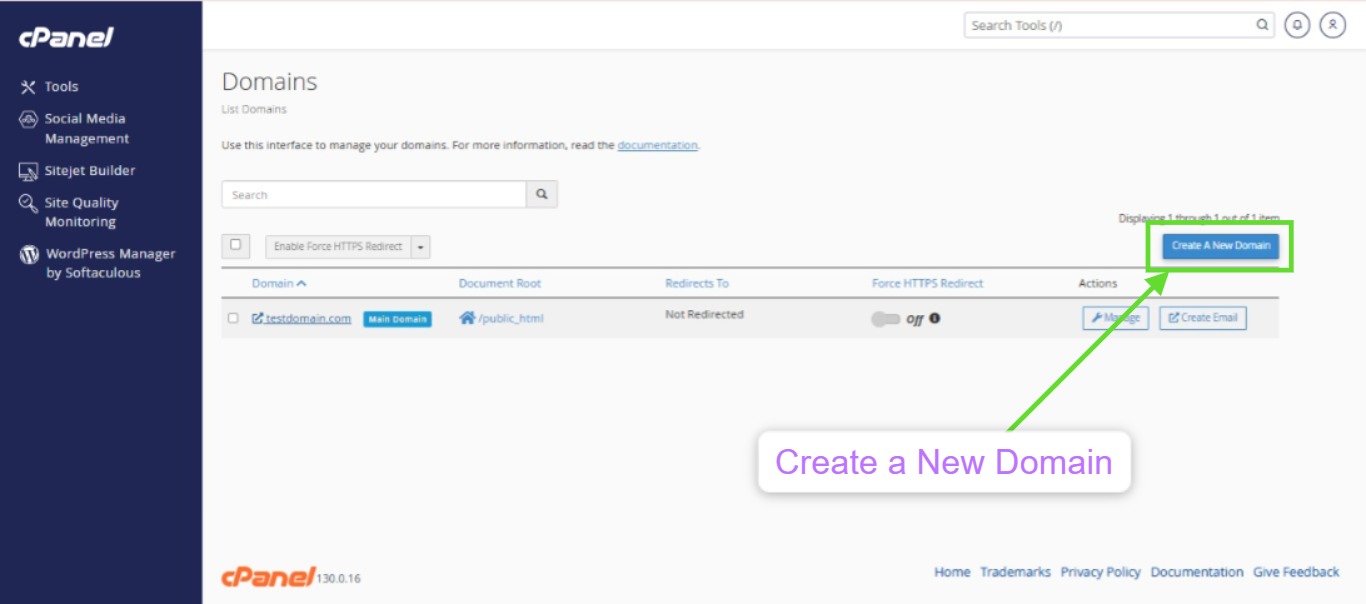
Step 3: Enter the Domain Name
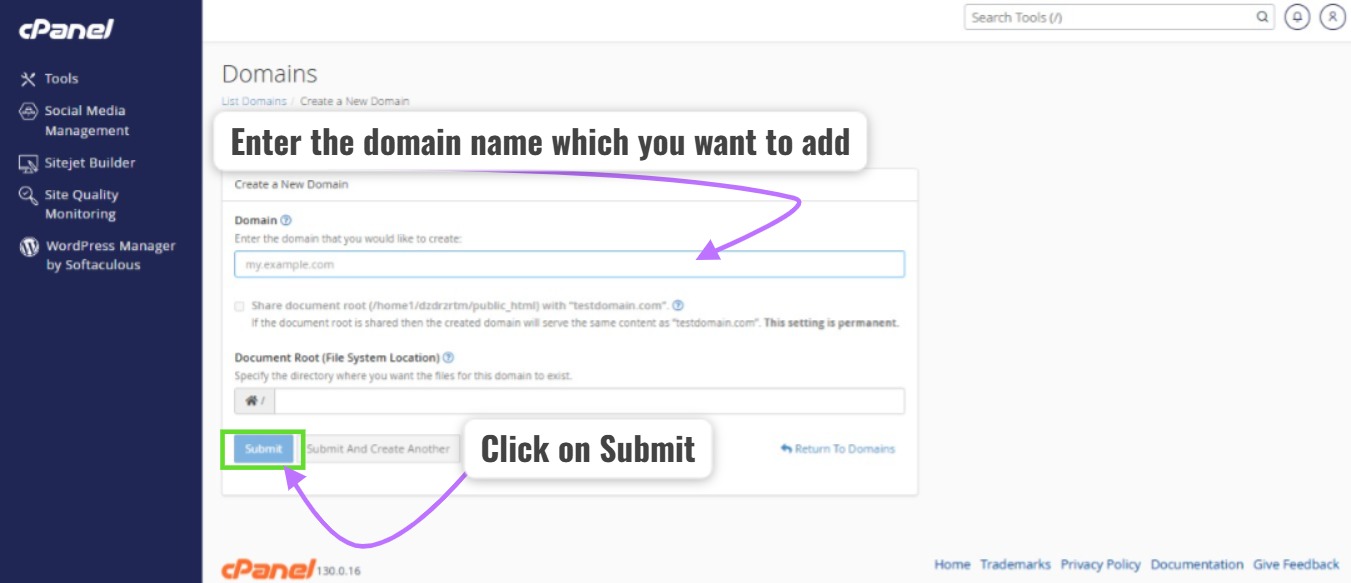
In the Domain field:
-
Enter the domain name you want to add (example:
mydomain.com). -
The Document Root will automatically generate a folder for the domain.
Optional:
-
You may enable Share document root if you want the new domain to use the same files as the main domain.
Step 4: Click Submit
After entering the domain name:
-
Click Submit to create the domain.
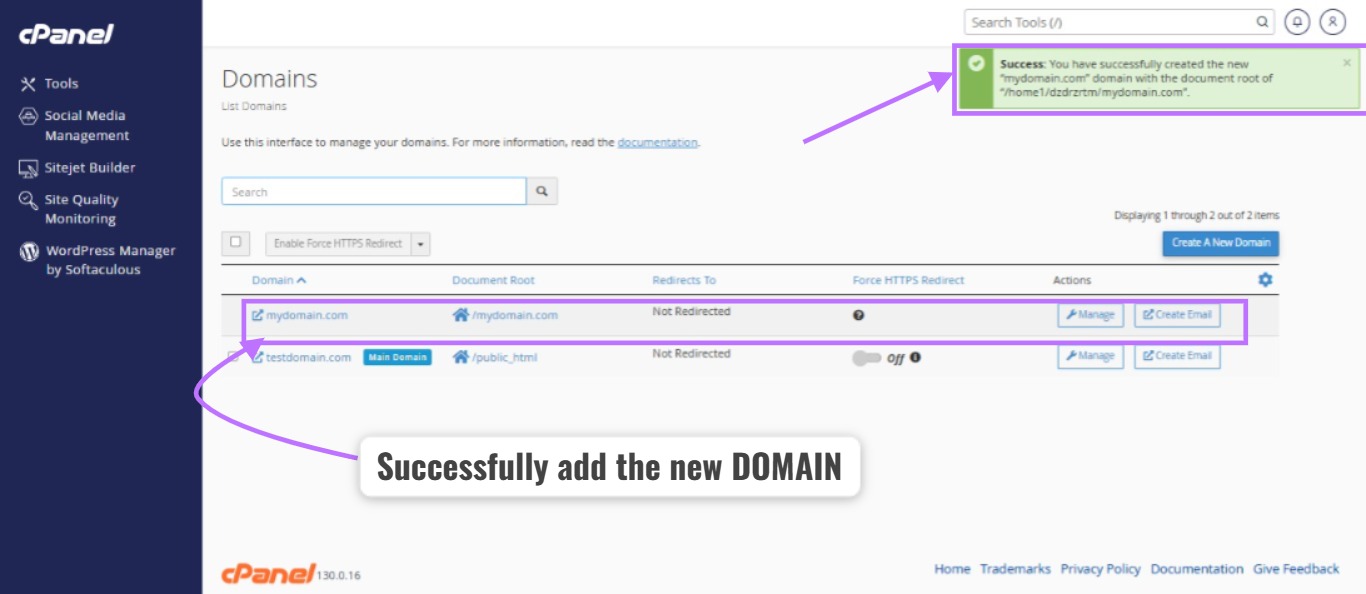
Step 5: Domain Added Successfully
Once the process is complete, you will see a Success message.
The new domain will now appear in the Domains list, and its folder will be created inside your hosting account.
Important Notes
-
Ensure the domain’s DNS is pointed to your hosting server IP.
-
After adding the domain, upload your website files to the domain’s document root directory.
-
DNS changes may take some time to propagate.