
Coolify is an open-source, self-hosted Platform as a Service (PaaS) that simplifies server management. Your server is pre-configured for automatic installation, meaning Coolify installs itself as soon as your server boots up.
1. Accessing Your Instance
Once your server is active, please wait 3–5 minutes for the automated installation script to complete. Afterward, access your dashboard via your browser:
Access URL:
http://[YOUR_SERVER_IP]:8000
ex. http://127.0.0.1:8000
2. Initial Setup & Registration
Upon your first visit, you will be guided through a simple registration and setup process:
-
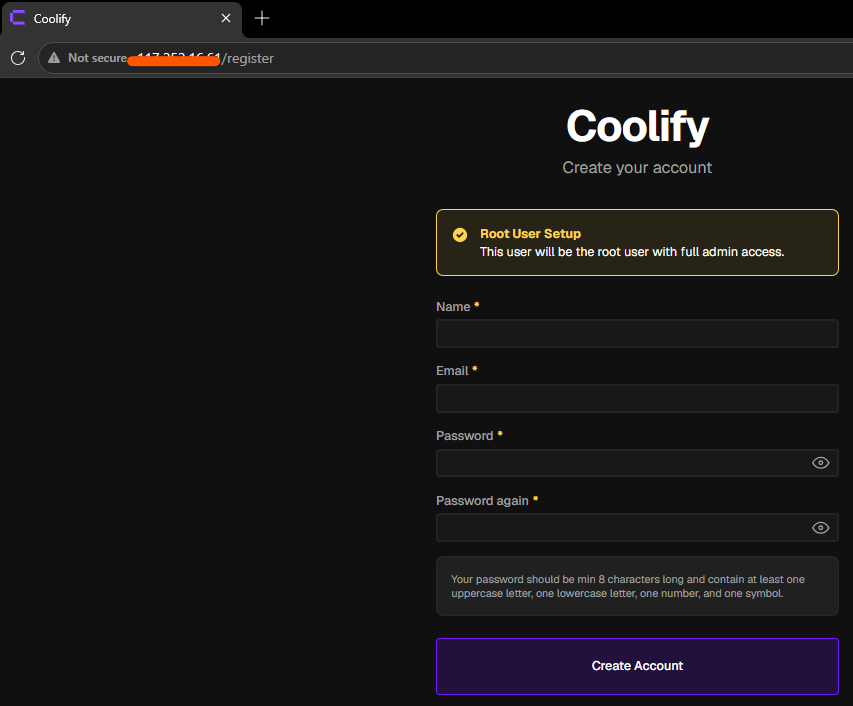
Account Registration: Enter your Name, Email, and a strong Password. This creates your "Root" administrator account.
-
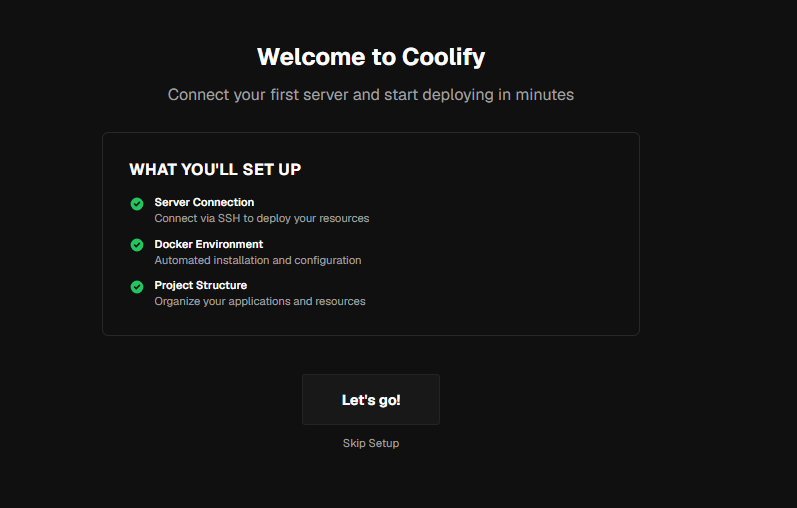
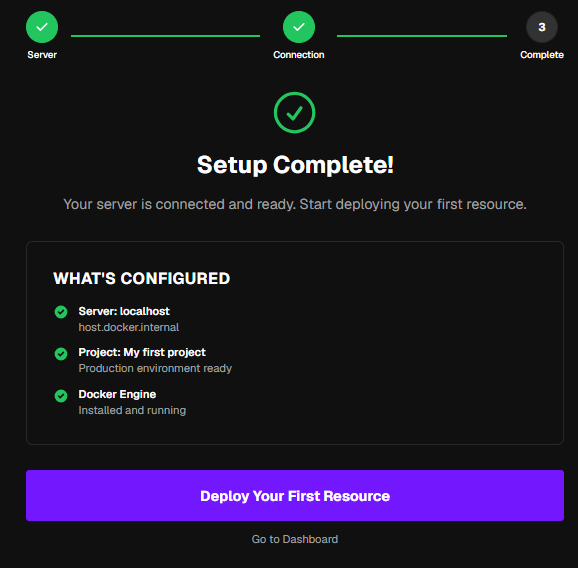
Setup Wizard: Follow the on-screen prompts to configure your environment.
-
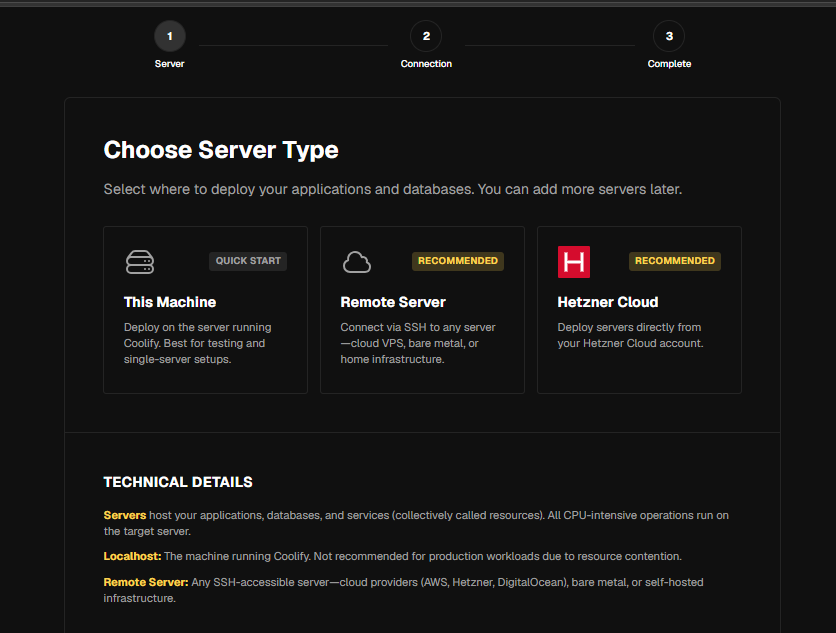
Select Server: Choose "This Machine" to manage applications hosted on this specific server.
-
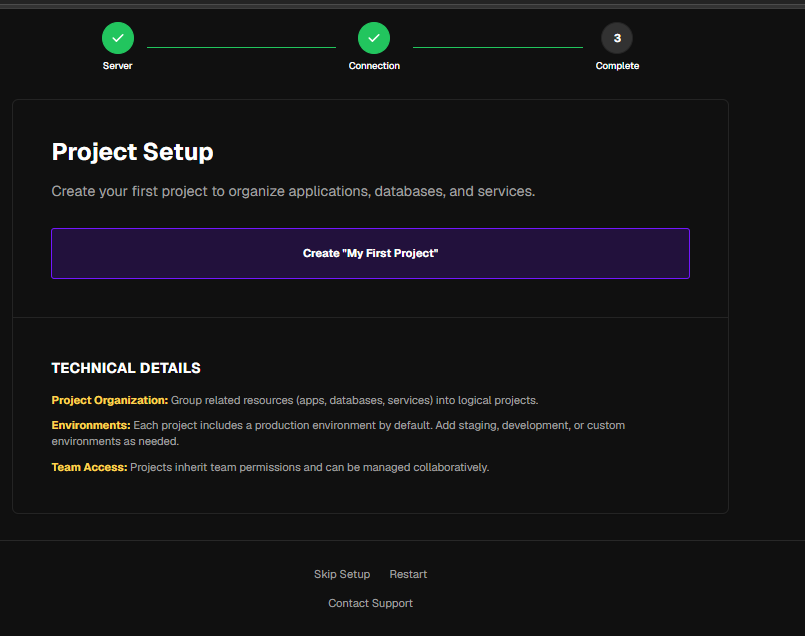
Initialize Project: Create your first "Project" container, which acts as a workspace for your applications and databases.
-
-
Dashboard Access: Once the wizard completes, you will land on the main dashboard.
3. Automated Installation Background
You can monitor the installation progress via SSH:
-
Log in to your server using SSH.
-
Run the following command to see if the installation is complete:
Bashtail -f /var/log/coolify-install.log
If the log says "Coolify installation complete," you are ready to log in via your browser.
4. System Verification Commands
Once Coolify is installed, you can use these commands to verify that your services are working correctly:
| Goal | Command |
| Check Docker Containers | docker ps |
| Verify Coolify Service | systemctl status coolify |
| Check System Logs | cat /var/log/coolify-install.log |
| View Resource Usage | docker stats |
Pro Tip: If
docker psreturns an empty list or shows containers restarting, wait a few more minutes. Coolify is likely still initializing its internal infrastructure.
5. Troubleshooting
-
Cannot load the page: Ensure you have allowed traffic on Port 8000 in your firewall settings.
-
Login fails: Ensure you are using the credentials you created in the initial setup wizard (Step 2).
-
Docker Errors: If the system is not working, try restarting the engine with
systemctl restart docker.
Need Help?
Still stuck? Our support team is ready to assist:
Pro-Tip: Coolify manages your Docker environment automatically. You can now start deploying your first application by clicking the "New" button on your main dashboard!