
Welcome to Immich! You now have your own private, high-performance photo and video backup solution. Your VPS has been pre-configured with the full Immich stack, including server, database, machine learning, and cache services.
1. Verifying Your Installation
Before logging in, let's confirm your environment is fully operational. Log in to your server via SSH and run:
docker ps
What to look for: You should see all 4 Immich services with a status of "Up" and "(healthy)".
| Service | Status |
immich_server |
Up (healthy) |
immich_postgres |
Up (healthy) |
immich_machine_learning |
Up (healthy) |
immich_redis |
Up (healthy) |
If you do not see all 4 services running as "healthy," wait 2–3 minutes for the startup sequence to complete.
2. Accessing Your Dashboard
Your Immich interface is accessible directly via your server’s web browser.
-
Open your browser and navigate to:
http://<YOUR-SERVER-IP>:2283 -
Initial Registration: You will be greeted by the Immich welcome screen.
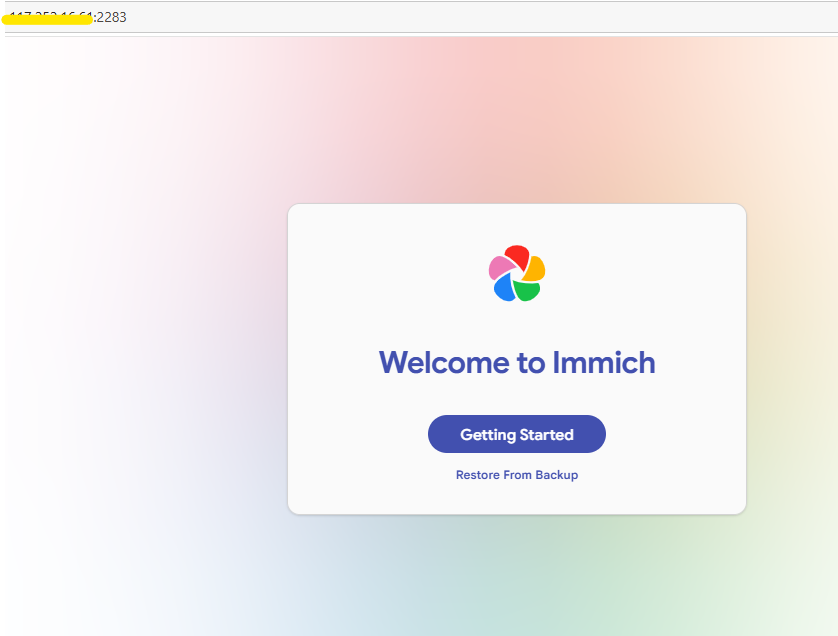
Figure 1: Welcome to your Immich instance.
3. Account Setup & Configuration
Follow these steps to initialize your administrator account and secure your instance.
Admin Registration
Create your administrator account (email and password). Store these credentials securely.
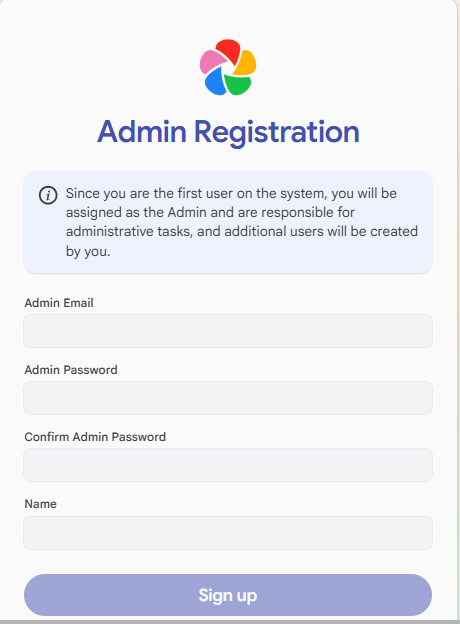
Figure 2: Creating your Admin Account.
Privacy Settings
Configure your storage preferences and privacy settings to ensure your library is managed exactly how you want it.
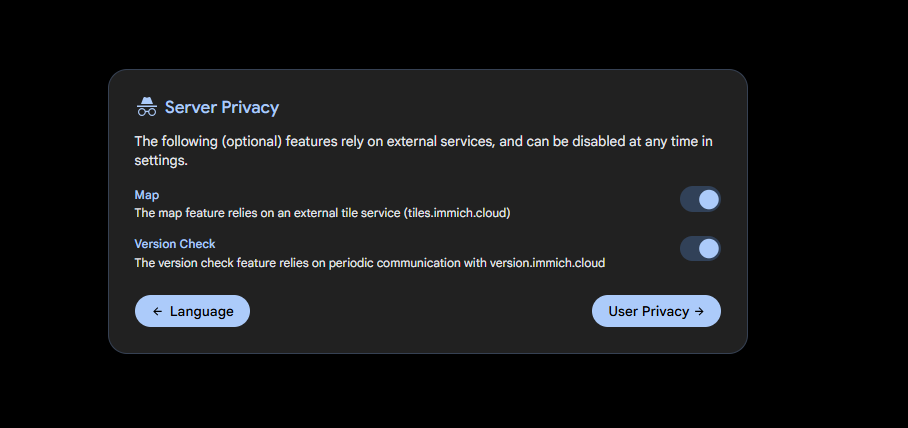
Figure 3: Setting your privacy preferences.
4. Storage & Advanced Management
Immich offers powerful tools to manage where your photos are stored and how they are indexed.
Backup & Storage Location
Set your primary backup path to ensure your photos are correctly synced to your server's storage drives.
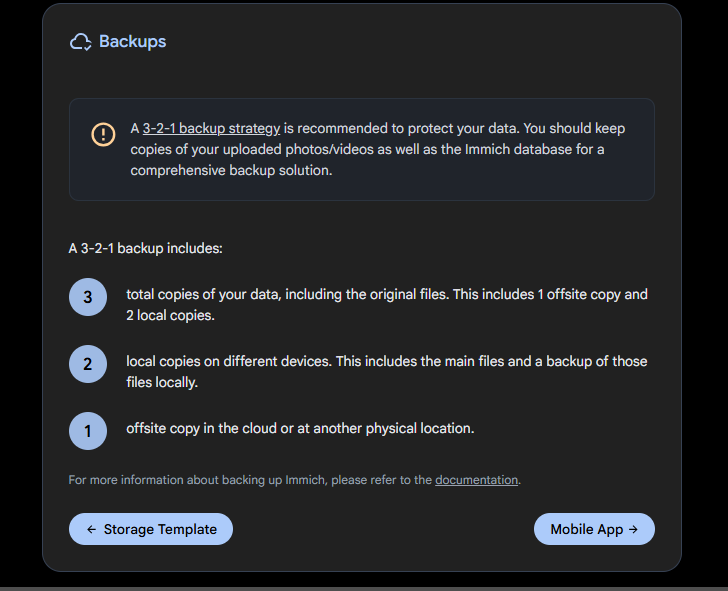
Figure 4: Configuring your server backup location.
Storage Casting
Use the Storage Cast feature to manage remote or external media sources seamlessly.
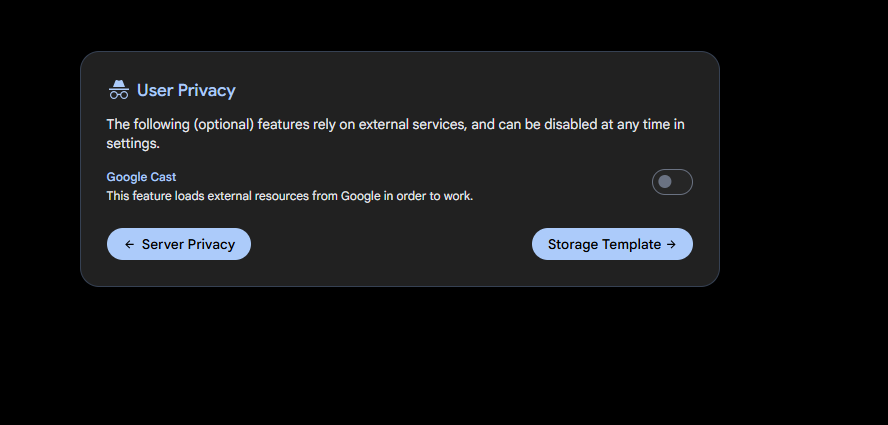
Figure 5: Storage cast configuration settings.
5. Overview & Mobile App
Once you are logged in, you can view your full library from the main dashboard.
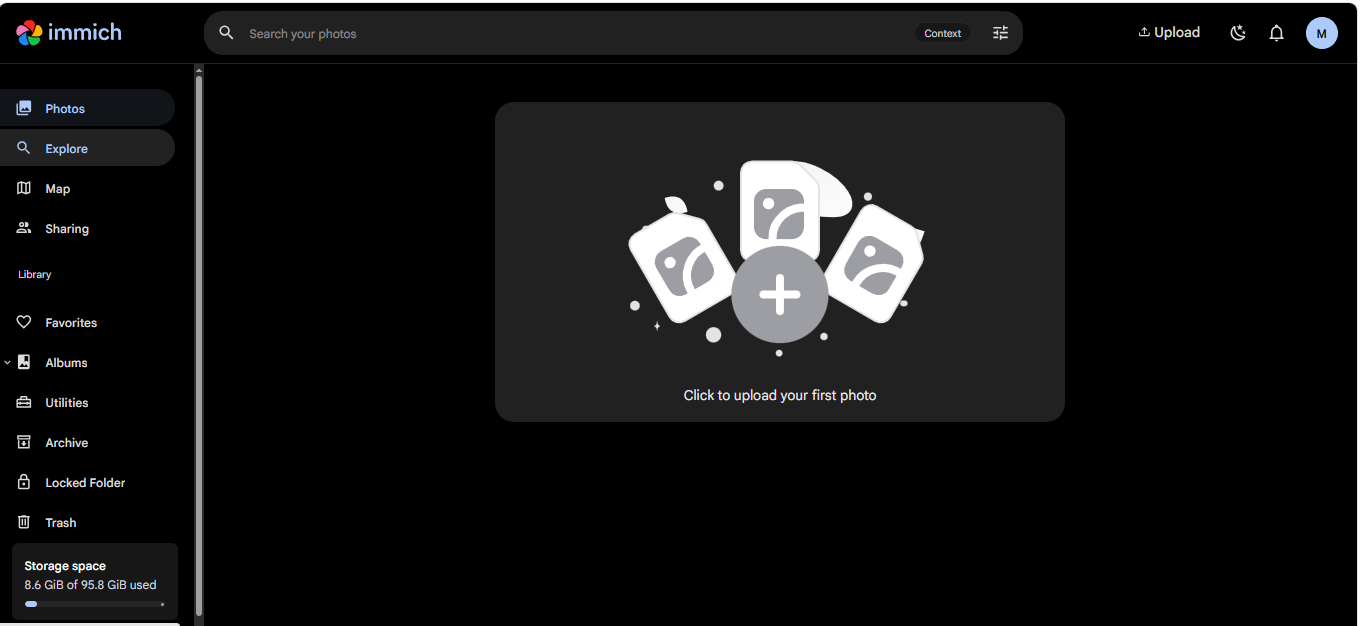
Figure 6: Your main Immich photo dashboard.
The Mobile Experience
Download the Immich App from the App Store or Google Play to enable automatic, background photo backups from your mobile device.
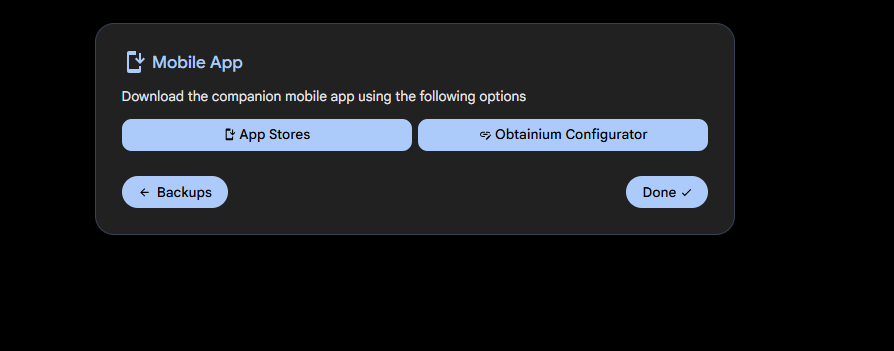
Figure 7: Connecting your mobile device for auto-backup.
6. Maintenance & Health Checks
You can run these commands via SSH to monitor your server resources and keep it running smoothly:
| Goal | Command |
| Check service status | docker ps |
| Check CPU/RAM usage | docker stats |
| View system logs | docker logs immich_server --tail 50 |
7. Troubleshooting
-
Page not loading? Ensure your firewall (Security Group) allows traffic on Port 2283.
-
Uploads failing? Check your storage quota and ensure your server disk space isn't full.
-
Service showing "Unhealthy"? Run
docker restart immich_servervia SSH to attempt a quick fix.
Need Help?
Still stuck? Our support team is here to assist:
Pro-Tip: Immich uses machine learning to organize your photos by objects and faces. When you first upload a large library, give the server a few minutes to process everything in the background!