
Backing up your WordPress website is important to protect your files, database, themes, plugins, and content from accidental loss or website issues. This guide explains how to create a full WordPress backup directly from cPanel.
Method 1: Backup WordPress Using cPanel Backup Wizard
Step 1: Login to cPanel
-
Open your hosting cPanel URL.
-
Enter your username and password.
-
Click Log in.
Step 2: Open Backup Wizard
-
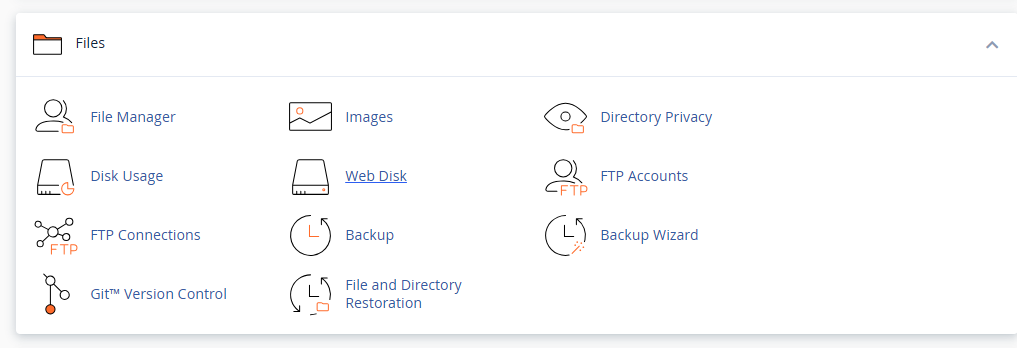
Inside cPanel, search for Backup Wizard.
-
Click the Backup Wizard option.
Step 3: Select Backup
-
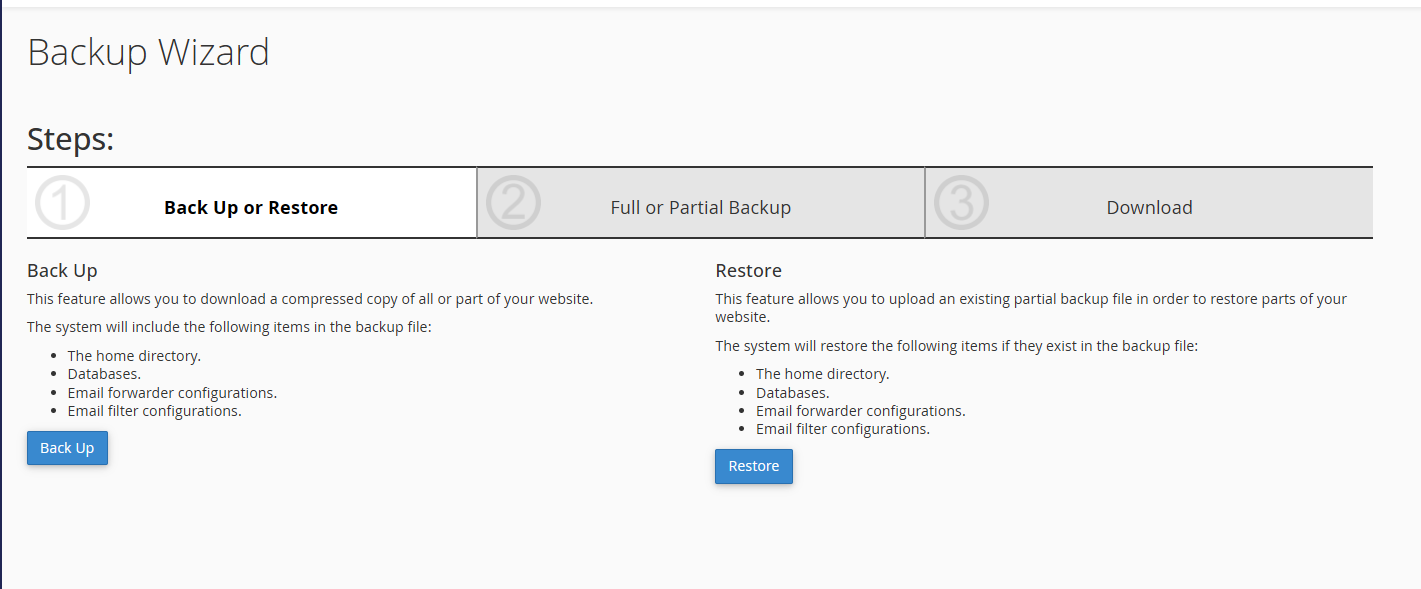
Click the Backup button.
-
Choose Full Backup or Partial Backup.
Full Backup
A full backup includes:
-
Website files
-
Databases
-
Email accounts
-
cPanel settings
Partial Backup
A partial backup allows you to separately download:
-
Home directory
-
MySQL databases
-
Email forwarders and filters
For WordPress websites, downloading both the Home Directory and MySQL Database is recommended.
Step 4: Download Website Files
-
Under Partial Backup, click Home Directory.
-
The backup process will begin automatically.
-
Save the backup file to your computer.
This backup contains:
-
WordPress core files
-
Themes
-
Plugins
-
Uploads
-
Configuration files
Step 5: Download WordPress Database
-
Return to the Backup Wizard page.
-
Under Download a MySQL Database Backup, click your database name.
-
Save the database backup file to your computer.
The database contains:
-
Posts and pages
-
User accounts
-
Website settings
-
Comments
-
Plugin data
Method 2: Backup WordPress Using File Manager and phpMyAdmin
Backup Website Files
Step 1: Open File Manager
-
In cPanel, click File Manager.
-
Open the public_html folder or your WordPress installation directory.
Step 2: Compress Website Files
-
Select all WordPress files and folders.
-
Click Compress from the top menu.
-
Choose Zip Archive.
-
Click Compress Files.
Step 3: Download Backup
-
After compression is complete, select the ZIP file.
-
Click Download.
-
Save the file on your computer.
Backup WordPress Database
Step 1: Open phpMyAdmin
-
In cPanel, click phpMyAdmin.
-
Select your WordPress database from the left sidebar.
Step 2: Export Database
-
Click the Export tab.
-
Choose Quick export method.
-
Select SQL format.
-
Click Go.
The database backup will download automatically.
Important Backup Recommendations
-
Keep multiple backup copies.
-
Store backups on your computer and cloud storage.
-
Create backups before:
-
Updating WordPress
-
Installing plugins
-
Changing themes
-
Editing website files
-
Recommended Backup Frequency
| Website Type | Backup Frequency |
|---|---|
| Blog Website | Weekly |
| Business Website | Daily |
| eCommerce Website | Daily or Real-Time |
How to Restore WordPress Backup
Restore Website Files
-
Open File Manager in cPanel.
-
Upload the backup ZIP file.
-
Extract the files inside the WordPress directory.
Restore Database
-
Open phpMyAdmin.
-
Select the database.
-
Click Import.
-
Upload the SQL backup file.
-
Click Go.
Conclusion
Regular WordPress backups help protect your website from data loss, hacking, update failures, and server issues. Using cPanel makes it easy to back up both website files and databases without installing additional plugins.