
Welcome to your high-performance server managed by 1Panel and hosted by HostGraber Managed Cloud Hosting!
1Panel is a modern, open-source Linux server management control panel designed to simplify web deployments, database handling, container management, and firewall rules through an intuitive graphical web interface.
1. Verifying Your Staging & Installation
When your cloud instance fires up for the first time, our background automation configures your networking stack, installs the core Docker packages, locks down non-essential ports, and fetches the latest optimized binary distribution of 1Panel.
Before logging in, let's verify that the background setup finished successfully. Access your server using an SSH client (like Terminal or PuTTY) as the root user.
Monitor Installation Progress
If you log in immediately and notice that your login splash notification states things are still finalizing, you can seamlessly trace the real-time background compiler log using this snippet:
tail -f /var/log/1panel-setup.log
Once the screen outputs === Setup complete ===, your server management workspace is officially online.
Essential Cluster Verification Commands
Run these diagnostic verification checks inside your SSH terminal to guarantee everything is operating seamlessly:
| Objective | Terminal Command | Target Success Indicator |
| Check 1Panel App Daemon | systemctl status 1panel-core |
Look for a solid active (running) status in green. |
| Verify Internal Port Bind | ss -tlnp | grep 12886 |
Confirms the panel wrapper is listening properly on its assigned port. |
| Inspect System Level Engine | systemctl is-active docker |
Will explicitly return active. |
| Check Firewall Status | ufw status numbered |
Verifies your local network rules are enforced. |
2. How to Locate Your Dashboard Credentials
For robust infrastructure safety, your management node does not launch with generic, easily-guessable static access routes or administrative passwords. Instead, a unique randomized configuration profile is dynamically provisioned during initialization.
To view your secure login metrics, type the following management tool string into your console shell:
1pctl user-info
Your screen will display your dedicated configuration block structured exactly like this:
============================================================
                Get 1Panel user information
============================================================
Panel address: http://$LOCAL_IP:12886/1c30193c9a
Panel user: d0f2a4cc89
Panel password: aecf59e8e9
Tip: To change the password, you can execute the command: 1pctl update password
------------------------------------------------------------
⚠️ Critical Infrastructure Note: 1Panel enforces a strict safety element called an Entrance Path (the secure alphanumeric code appended to the tail of your access link, such as
/1c30193c9a). If you attempt to access the dashboard address using only your raw IP and Port without this exact entrance suffix string, your request will intentionally return a blank screen or a timeout drop.
3. How to Log In to the Dashboard
-
Access via Web Browser: Copy the entire
Panel addresslink string generated from your terminal command step and paste it into your favorite modern web browser. Make sure to replace$LOCAL_IPwith your actual server IP address. -
Authenticate Securely: Supply the dynamic dashboard administrative username and unique password string provided from your query output.
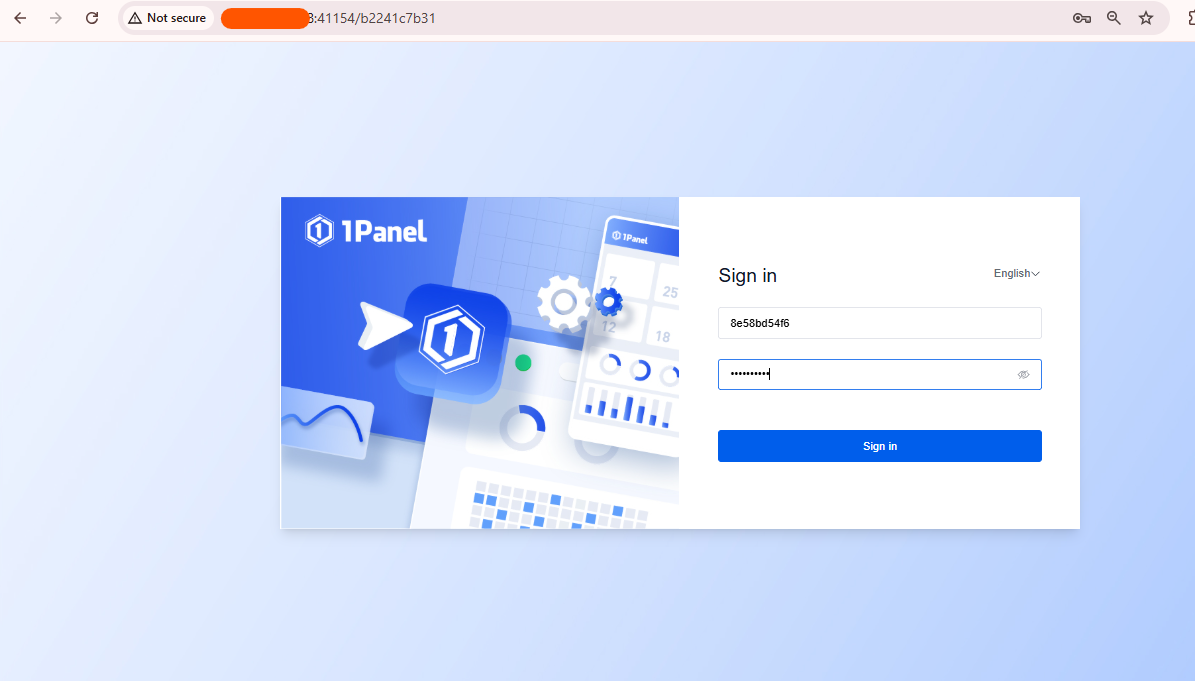
Figure 1: The secure 1Panel administrator landing authentication view.
-
Explore Your Infrastructure Core: Upon passing authentication, you are instantly taken to the primary cluster management command view. This zone houses instant performance dials monitoring real-time active system computing loads, tracking Memory utilization, and allowing clean installation of one-click container application profiles.
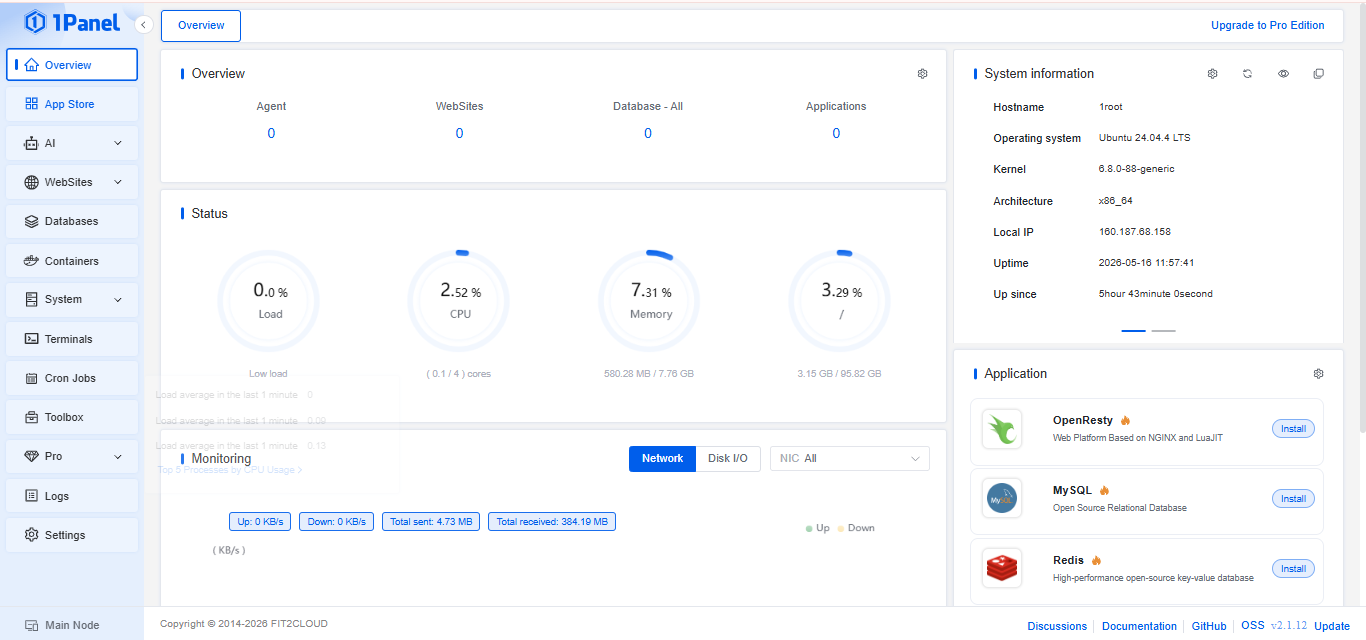
Figure 2: The production-ready 1Panel internal analytics center workspace.
4. Useful Production Maintenance Snippets
Once inside your deployment container environment, keep these utility commands handy for regular management actions:
-
Update Administrative Password: Want to transition away from your randomly assigned terminal deployment key to a chosen organization master password? Run:
1pctl update password -
Read Stored Setup Assets: To securely reference your local infrastructure information template file again at a later date, call:
cat /root/credential.txt -
Cycle Web Service Stack: If you adjust your engine setup rules or make adjustments to system variables and need to flush or cycle your interface daemon:
systemctl restart 1panel-core
5. Troubleshooting: "ERR_CONNECTION_REFUSED"
Our default automated configuration routine strictly protects your host by locking system-level filters down using ufw, allowing external traffic entry through standard communication gateways and your assigned random panel port.
If your terminal reports that services are running successfully but your web browser throws an unresolvable routing error or access loop:
-
The Solution: Log directly into your cloud infrastructure console provider panel where your actual virtual machines are built. Locate your hypervisor infrastructure Security Groups / Cloud Firewall Rules, and configure an incoming network rule allowing traffic across the target network TCP Port 12886.
Need Architectural or Deployment Assistance?
If you hit an unexpected error or want tips on integrating multi-tier Docker application volumes on your system, our engineers are here to support your production workflow: