
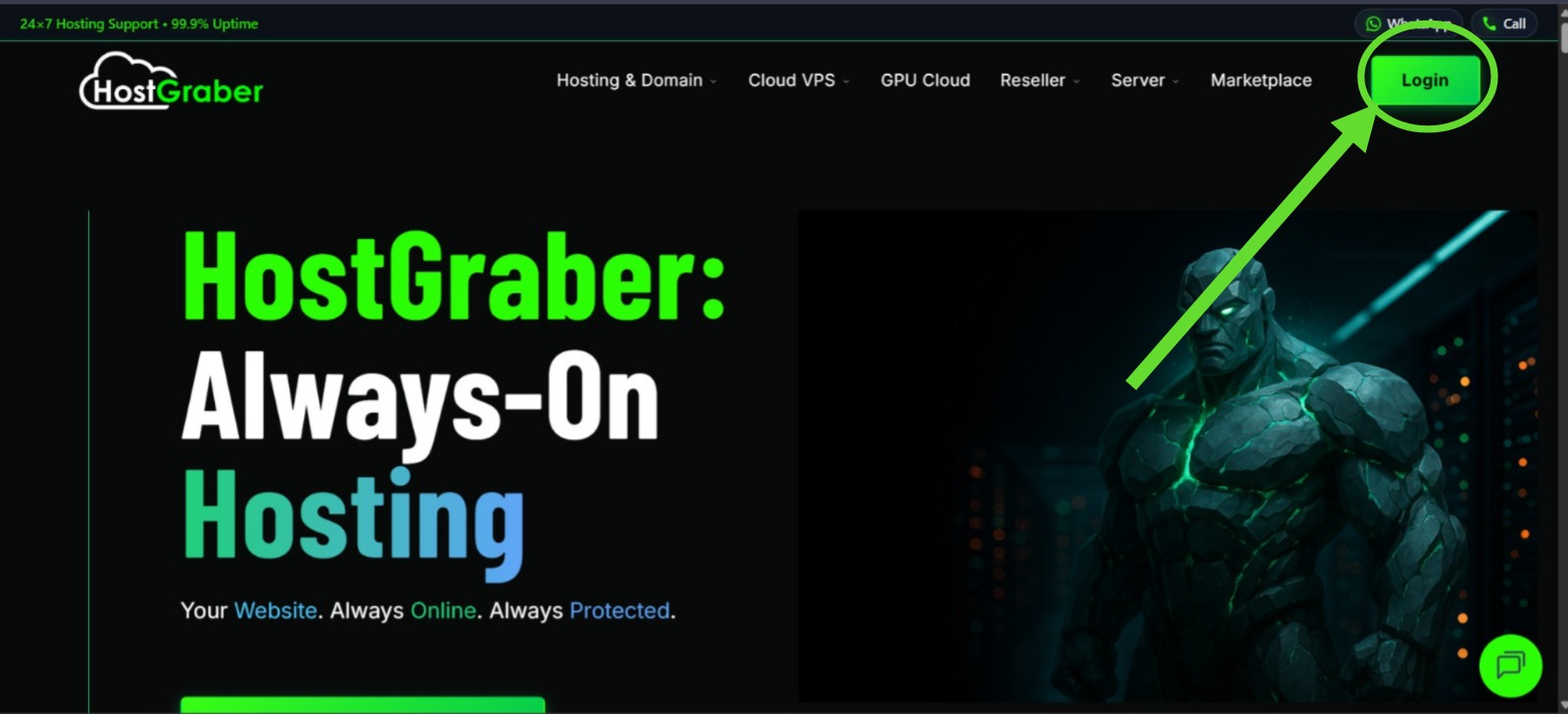
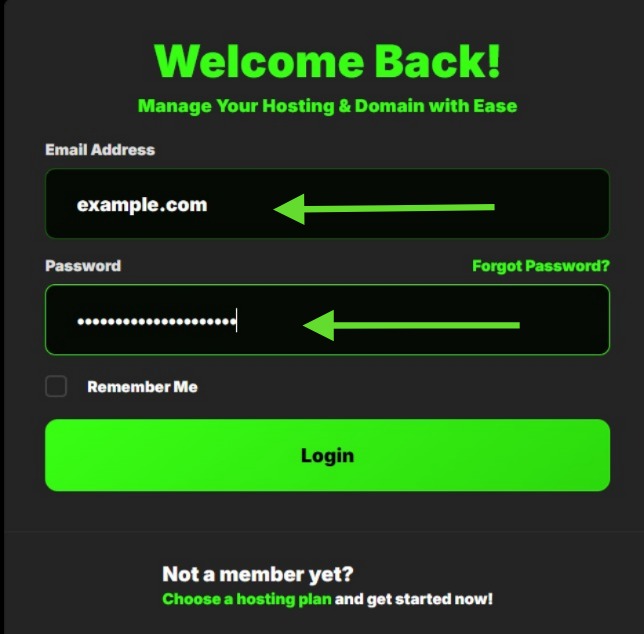
- Login to your user dashboard.
- Go to My Products under Products section.
- Click on My Products & you will see your products in a listed-manner.
- Click on Manage situated at the right-corner of each products to manage the specific product.
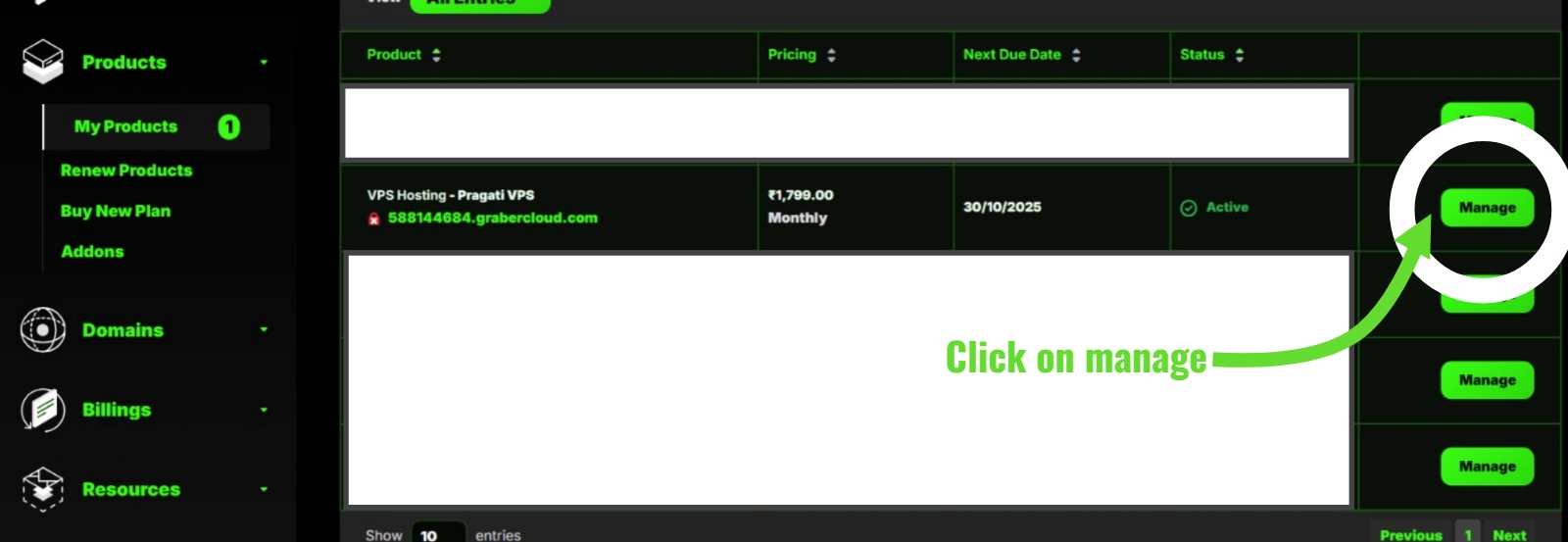
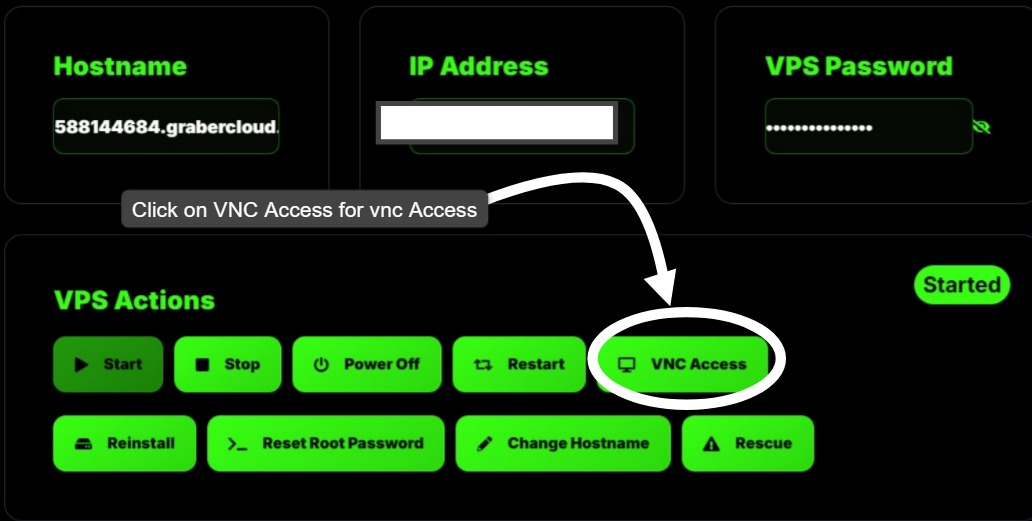
- You will arrive on Product Details page. Here you will find overview of your instance.
- Click on VNC Viewer.
Click CTRL+ALT+DELETE . Enter your VPS Username & password through keyboard OR click on CTRL+V and hit enter .
-->You are now connected to your VPS Instance.
Now fix the issue -
- Your OS install's default lockout policy is configured to temporarily lock the account after a number of unsuccessful login attempts. If this issue prevents you from logging in to Remote Desktop, Kindly follow the below steps to fix this error.
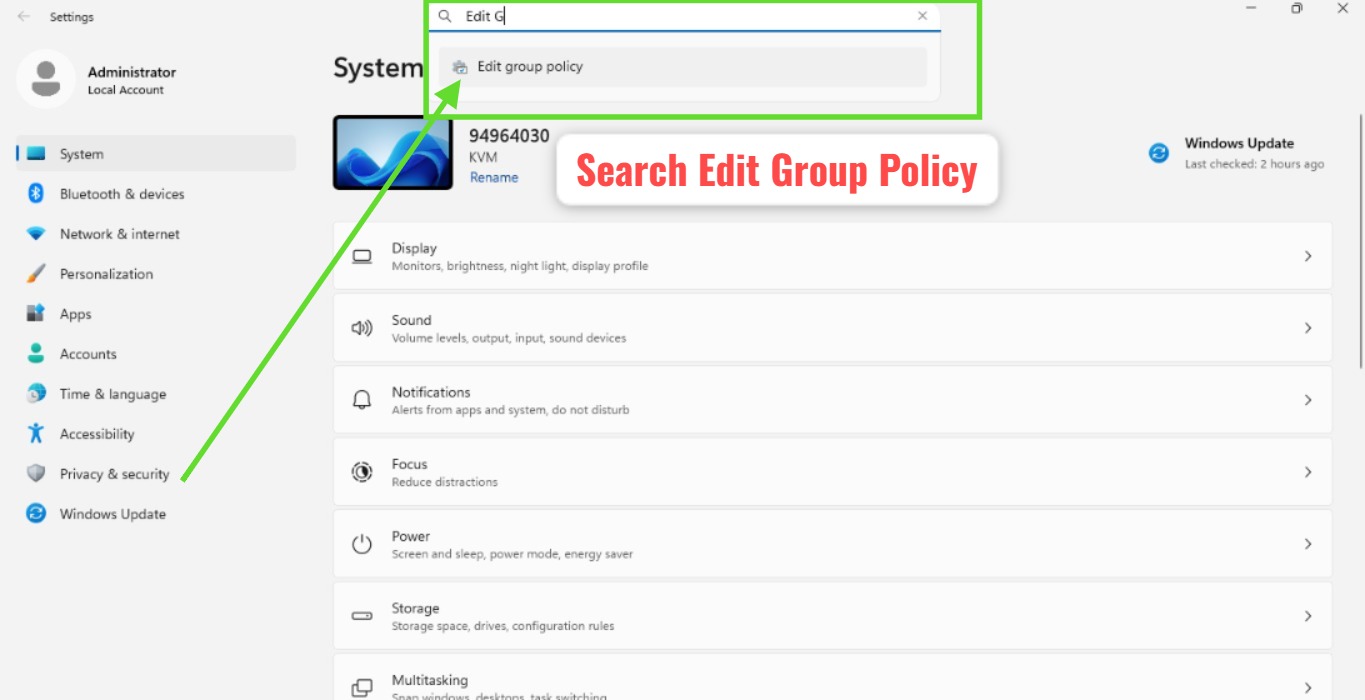
- Go to Settings. Search for Edit group policy.
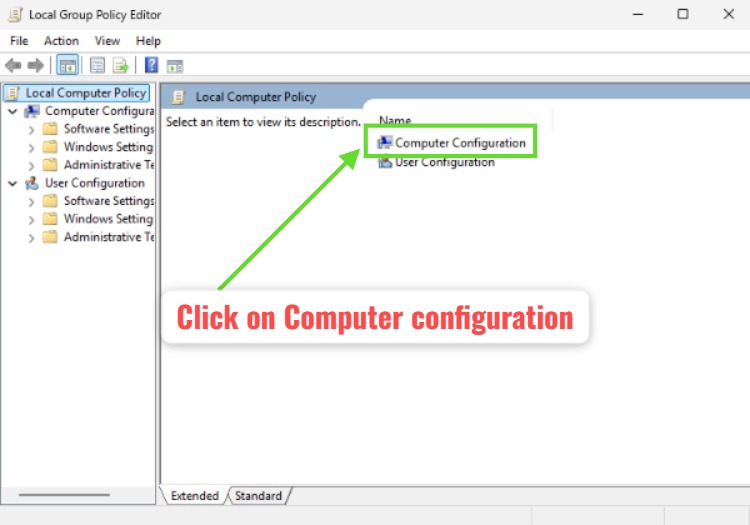
- Go to Computer Configuration, under Local Computer Policy.
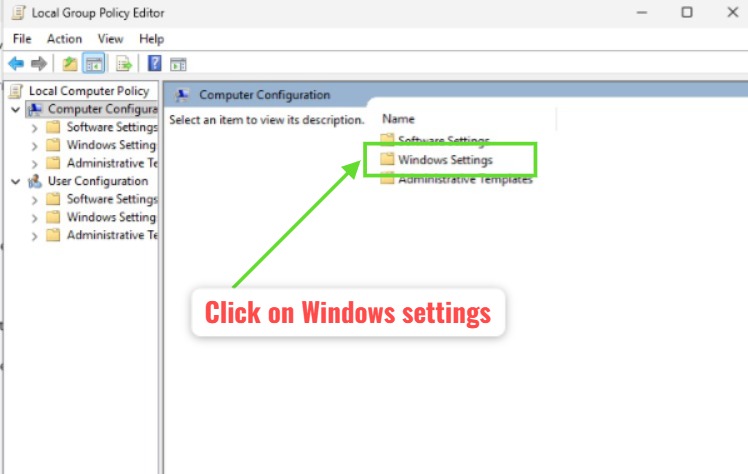
- Navigate to Windows Settings.
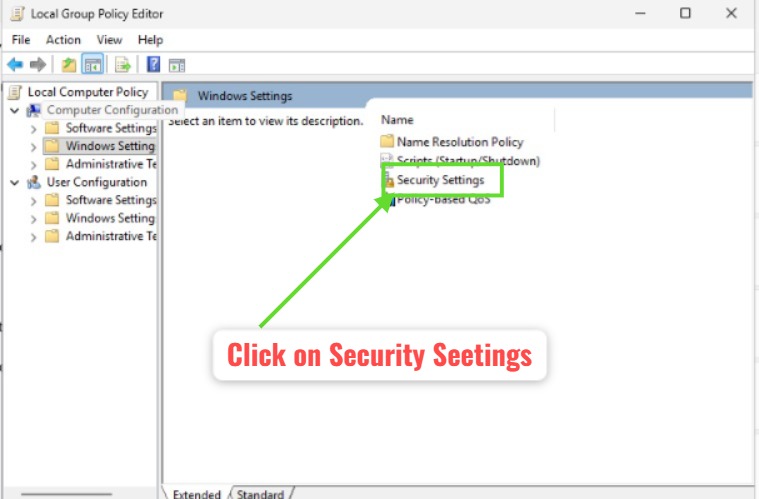
- Open the Security Settings.
- Go to Account Policies.
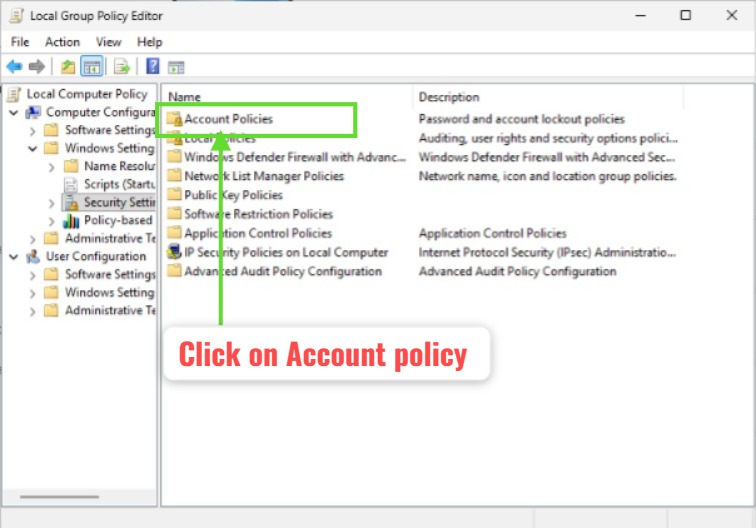
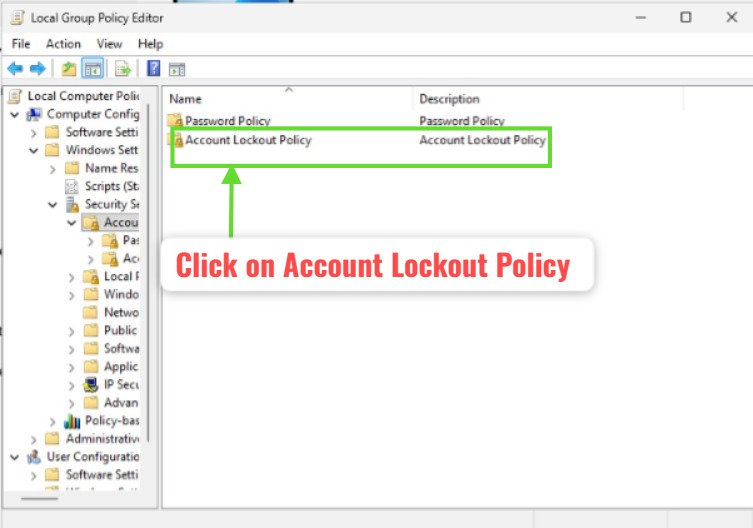
- Click on Account Lockout Policy.
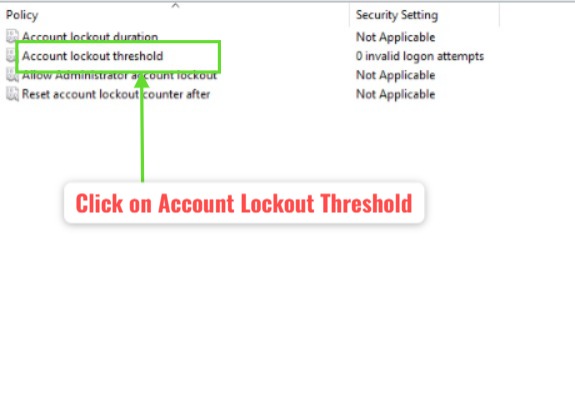
- Go to Account Lockout Threshold.
- Adjust the threshold for account lockout. Put the count 0.
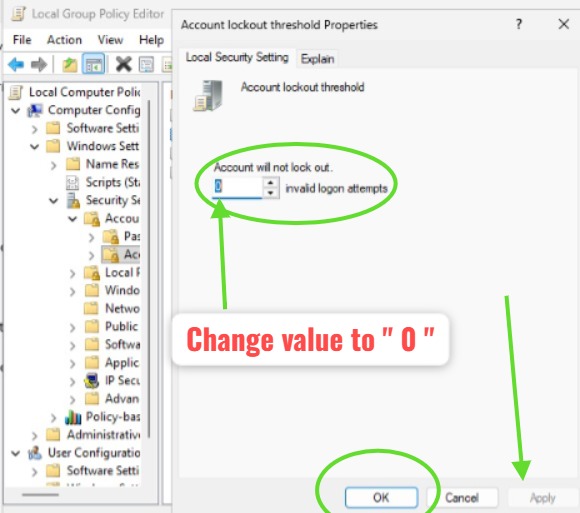
Click Apply and then Click on Save.