
Purpose
This article explains the basic steps to connect to a Windows VPS or Dedicated Server using Remote Desktop (RDP). Follow the steps below and refer to the related images for visual guidance.
RDP Connection Steps (Windows PC)
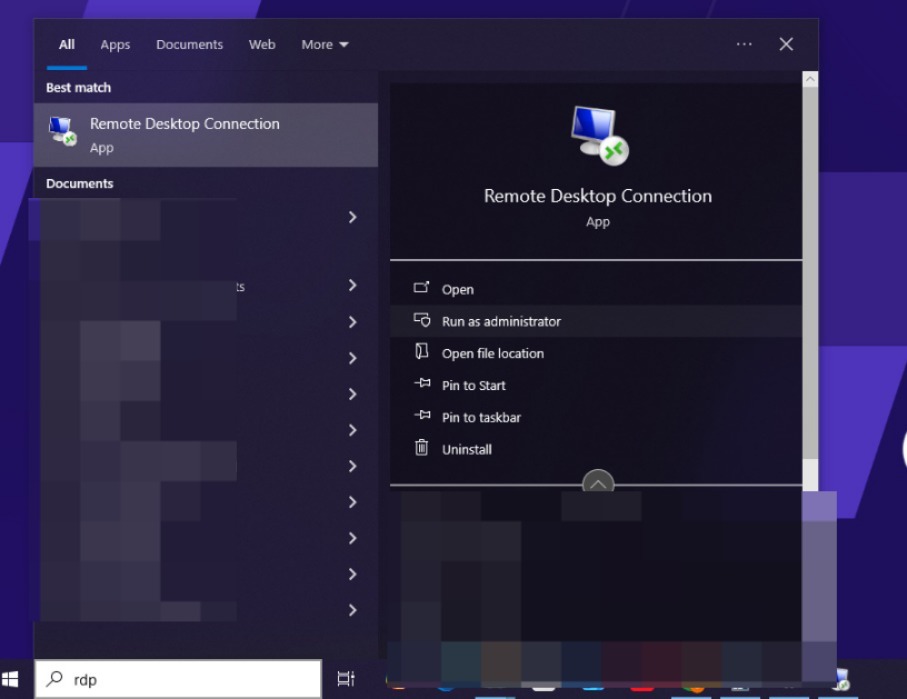
Step 1: Open Remote Desktop Connection
-
Click on the Start menu
-
Type RDP or Remote Desktop Connection
-
Click Open
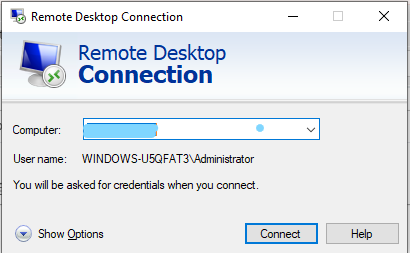
Step 2: Enter Server IP Address
-
In the Computer field, enter your Server IP Address
-
Click Connect
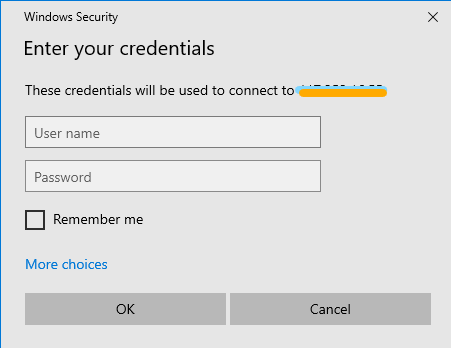
Step 3: Enter Login Credentials
-
When the Windows Security prompt appears:
-
Username: Administrator
-
Password: Use the password provided in your service details
-
-
Optionally check Remember me
-
Click OK
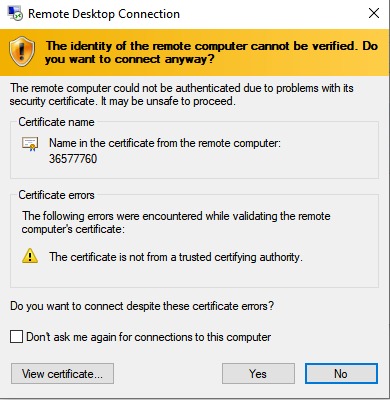
Step 4: Accept Security Prompt
-
If a certificate warning appears, click Yes or Continue to proceed
Successful Login
Once connected, your Windows desktop will load and you can start using your server.
Important Notes
-
Make sure your internet connection is stable
-
Ensure port 3389 is not blocked by your firewall or ISP
-
Always copy-paste credentials to avoid typing errors
-
Passwords are case-sensitive
Common Issues
-
Wrong username/password: Re-check service details
-
Connection timeout: Verify IP address and firewall rules
-
Black screen after login: Restart the server from control panel
Need Help?
If you are unable to connect via RDP, please contact support from your client dashboard.